
What this AI image upscaler does to a photo
An image upscaler takes a picture that is too small for the job and gives it more pixels. A plain resize does that by stretching what is already there, which is why a small photo blown up to full screen looks soft and smeary. An AI image upscaler adds pixels differently: a neural network that has learned what real edges, hair, fabric and skin look like at high resolution predicts the missing detail and draws it in.
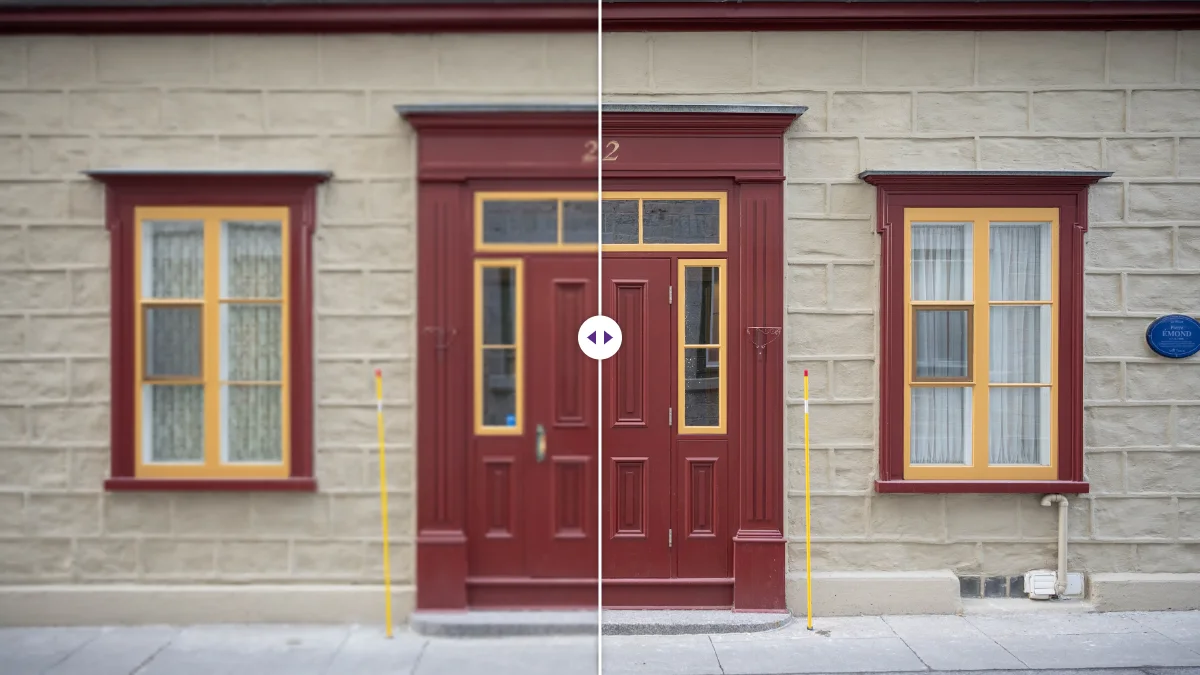
Because the model runs in your browser, this is a free image upscaler online with no credits and no daily cap, and as a 4K image upscaler it takes a Full HD picture to exactly 3840 × 2160 in one 2x pass.
Here is what that looks like in numbers. We took a portrait, shrank it to 480 × 480 pixels to imitate an old low-resolution photo (the file was just 11 KB), and ran it through this tool at 4x. The result was 1920 × 1920 pixels and took 3.4 to 6.2 seconds on a desktop PC, depending on the export format. Then we enlarged the same 480-pixel file to 1920 × 1920 with the browser's own high-quality resize and compared the two faces side by side. The AI version had crisp eyelashes, a clean line along the teeth and a defined hairline. The plain resize had none of that. Measured as fine edge contrast (the variance of a Laplacian filter over the same 480 × 480 crop), the AI result scored 34.7 and the plain resize 3.0, roughly eleven times more edge detail.
It wasn't perfect, and we'd rather tell you how. The skin came out smoother than in the original full-size photo, with a slightly retouched look. That is typical of super-resolution models: they are very good at edges and repeated textures and tend to iron out fine, random texture such as pores and film grain. For most uses (a profile photo, a product shot, a print on the wall) people prefer the cleaner look. If you need the grain to survive, you'll read below how the Detail Recovery and Sharpness sliders help.
The whole process runs inside your browser. The photo is not uploaded anywhere, there is no account, no daily cap and no watermark, which is also why this free image upscaler can stay free: there is no server doing the work, so there is nothing to bill.
How to upscale an image, step by step
The tool sits at the top of this page. If you have done this before, the short version is: drop the photo in, pick 2x or 4x, click Upscale Image, download. The longer version is worth reading once, because two of the choices change the result a lot.
- Add the photo. Drag a JPG, PNG or WebP file onto the upload box or click it to browse. Files up to 100 MB are accepted. If you have a folder of images, switch to the Bulk tab first; it takes up to 20 images and returns them all in one ZIP file.
- Choose the enlarge factor. 2x doubles the width and the height (four times as many pixels). 4x quadruples both (sixteen times as many pixels). The next section explains how to pick.
- Leave the sliders alone for a first pass. All eight enhancement sliders start at zero, which means the result is the AI's output with nothing added. Run it once like that and look at the result before adjusting anything.
- Pick an export format. WebP gives the smallest file, JPG is the safest choice for uploading anywhere, PNG is lossless and large. There's a table of real file sizes further down.
- Click Upscale Image. The first time, the browser downloads the AI model, so the first job takes a little longer. After that the model is ready and each image starts straight away.
- Compare and download. Use the before-and-after slider on the preview to check edges, text and faces at a glance, then click Download Image.
One small thing we noticed while testing: the tool starts work on the next screen refresh after you click, so if you switch to another browser tab the instant you press the button, it waits until you come back. Stay on the tab for the first second and it carries on in the background from there.
Upscaling a whole folder with Bulk mode
The Bulk tab is for the times you have a set of images that all need the same treatment: thirty product shots from a supplier, a scanned photo album, the images from an old website you're rebuilding. You can add up to 20 images per batch, each up to 100 MB, and the tool works through them one after another, then hands you a single ZIP file with everything inside.
Every image in a batch gets the same factor, the same slider settings and the same export format, so it pays to set them up on one representative image in Single mode first. Find the settings that work, switch to Bulk, add the rest, and run them. If the batch mixes very different pictures (dark indoor photos and bright outdoor ones, say), split it into two batches with their own settings rather than settling on a compromise that suits neither.
Two practical notes from running batches. The total time is roughly the single-image time multiplied by the number of images, so a batch of twenty 1.5-megapixel photos on a mid-range laptop is a coffee-break job, not an instant one. And because everything stays in browser memory until the ZIP is built, a batch of twenty very large photos at 4x can hit the memory limit on a computer with 8 GB of RAM. If that happens, use smaller batches or 2x.
2x or 4x? Pick the factor from the size you need
The right factor is whichever one gets you to the size you actually need, and no further. Bigger is not better here. A 4x pass takes longer, produces a much larger file, and if the original only needed to be twice as large, the extra pixels add nothing you can see.
Work it out like this: divide the width you need by the width you have, then round up to 2 or 4. A few common cases:
- Full HD photo to a 4K screen. 1920 pixels wide to 3840 pixels wide is exactly 2x. Using 4x would overshoot 4K by far, and most screens would simply shrink the result again.
- An old 640 × 480 camera photo for a 6 × 4 inch print. A sharp 6 × 4 print needs about 1800 × 1200 pixels (300 pixels per inch). 640 × 3 = 1920, so 2x falls short (1280) and 4x (2560) covers it with room to crop.
- A 500-pixel product photo for an online store. Many stores ask for at least 1000 pixels on the longest side so that zoom works. 2x is enough.
- A thumbnail you saved from a chat app, around 320 pixels wide. 4x gives you 1280 pixels, which is fine for a slide or a blog post. Don't expect it to survive a poster, though; see the section on limits.
For printing, the rule of thumb is 300 pixels per inch for photos you hold in your hand and 150 to 200 for posters you look at from a distance. Multiply the print size in inches by that number to get the pixels you need. Our guide on how to increase image resolution has a full table of print sizes, and if your target is specifically a 3840 × 2160 screen, the walkthrough on how to upscale an image to 4K covers aspect ratios and cropping too.
Why changing "72 dpi" to "300 dpi" doesn't help
A lot of people are told by a print shop or a publisher that their image must be "300 dpi", open it in an editor, change the 72 in the resolution box to 300, and send it off. It gets rejected again, and it's not obvious why. The DPI number stored in a file is only an instruction about how large to print it. Changing it from 72 to 300 tells the printer to squeeze the same pixels into a smaller area, so a picture that would have printed 20 inches wide at 72 dpi now prints under 5 inches wide at 300 dpi. Not a single pixel is added.
What the print shop actually needs is enough pixels for the print size at 300 per inch. That means upscaling. A 1200 × 800 photo meant for an 8 × 10 inch print needs roughly 2400 × 3000 pixels, so a 4x upscale (4800 × 3200) gets you there with plenty to crop. If their software still reads the old DPI number from the file and complains, the number itself can be changed afterwards in any editor; with the pixels in place, it's now telling the truth.
In our tests, time grew with the size of the input more than with the factor. The 480-pixel portrait finished in three to six seconds at either factor. The 1.7 megapixel photo of a cat on a wall took about 21 seconds at 2x. If you're processing a big batch, run a single image first to see how your computer copes.
The eight enhancement sliders, and when to leave them at zero
The sliders run after the upscale, on the enlarged image. They are optional, and on a clean photo the honest advice is to skip them entirely. Where they earn their keep is on photos that were already in poor shape before they reached you.
- Denoise smooths out grain and the blotchy colour noise you get from phone cameras in dim light. Use it first, before any sharpening, because sharpening a noisy photo sharpens the noise.
- Sharpness increases contrast along edges. A little goes a long way. If you see bright halos around dark edges (a thin white outline around hair against a dark background is the classic sign), step it back.
- Detail Recovery brings back fine texture. This is the slider to try if the upscaled skin or fabric looks too smooth for your taste.
- Clarity adds contrast in the mid-tones, which makes a flat, hazy photo look more defined without touching the brightest and darkest parts much.
- Brightness, Contrast, Saturation and Vibrance are ordinary colour corrections. Vibrance is the gentler of the two colour sliders; it lifts muted colours more than ones that are already strong, so skin tones are less likely to turn orange.
A sensible order for an old, grainy photo: Denoise to 10 or 15, run it, look. Then Detail Recovery to 10, run again. Only then touch Sharpness. Changing one slider at a time is slower but it's the only way to learn what each one is doing to your particular picture.
Which format to download: PNG, JPG or WebP
The format choice affects file size far more than it affects how the picture looks. Here are the real sizes from our tests, all at the same resolution:
- 480-pixel portrait at 4x (1920 × 1920): PNG 1.24 MB, JPG 141 KB, WebP 57 KB.
- Cat on a wall at 2x (3200 × 2132): PNG 6.85 MB, JPG 581 KB, WebP 337 KB.
That PNG is twenty times the size of the WebP for a photo that looks the same on screen. PNG is lossless, so it's the right choice if you plan to edit the result further in another program, or if the image has sharp text and flat colours, like a screenshot or a logo. For photos you're going to share, upload or put on a website, choose WebP if the place you're uploading to accepts it, and JPG if you're not sure. Most forms, marketplaces and email clients take JPG without complaint.
If you need to hit an exact size afterwards, say a form that rejects anything over 200 KB, run the upscaled file through the image compressor, which can target a size in KB.
Where the AI runs, and when it doesn't
This is the part most upscaler websites don't explain, and it matters if you use a phone.
On a desktop or laptop browser with WebGL (every current version of Chrome, Edge, Firefox and Safari on a computer has it), the tool runs ESRGAN, a super-resolution neural network, through the UpscalerJS library. The model is downloaded once and then runs on your graphics chip. It works on the photo in small tiles, which is what keeps memory use reasonable.
The AI is used for source images up to about 10 megapixels, roughly 3872 × 2582. Above that, running a neural network in a browser gets slow enough to stall the graphics driver, so larger photos go to the classic engine instead: a careful multi-step resize followed by the same sharpening and detail passes. The tool is made for results up to 4K. If your graphics chip runs out of memory on a big job, the tool retries with a smaller AI pass and finishes the last part of the enlargement with a quick resize, rather than failing.
On phones and tablets, the tool always uses the classic engine. Mobile browsers give web pages very little graphics memory and kill tabs that use too much, so running the model there would crash more often than it would help. The classic engine is still better than a plain resize, because the enhancement passes do real work, but it is not the same as the AI. If you are upscaling something important, do it on a computer.
The status message after each job tells you which engine ran: "Image AI-enhanced and upscaled" means the neural network did the work.
What happens to your photos
Nothing leaves your device. The page loads the code and the model from a content delivery network, the same way it loads its fonts, and from then on the image is read from your disk into the browser's memory, processed there, and handed back to you as a download. There is no upload step, so there is no copy on a server to be stored, analysed, leaked or used for training.
This matters more than it sounds. The photos people most want to upscale are often the personal ones: a scanned print of a grandparent, a child's school photo, a passport picture, a client's product shots under a non-disclosure agreement. With an upload-based service you are trusting their retention policy. Here there is nothing to retain.
A related privacy point: the upscaled file doesn't carry the original's hidden data. We checked with an iPhone photo that had GPS coordinates in it: the upscaled version had no camera details and no location left, because the tool saves a completely new file. The original on your device still has everything, though. If you ever share the original itself, run it through the metadata remover first; it shows you what's in the file and strips it without touching the pixels.
What people use an image upscaler for
Printing old or small photos
Old digital photos are the most common case: a 2006 camera at 2 or 3 megapixels, or a phone photo that was compressed when someone sent it through a messaging app. On screen they look fine; printed at 8 × 10 inches they look like a watercolour. Upscaling to the pixel count the print needs, with a touch of Denoise if the original was taken indoors, gets most of them to a print you'd be happy to frame. For scanned prints, scan at 600 dpi if you can. It gives the upscaler more to work with than any amount of processing afterwards.
A workflow for scanned family prints
Scans are where the order of operations matters most, so here's the sequence that has worked best for us:
- Scan at the highest optical resolution your scanner offers, usually 600 dpi for prints. A 6 × 4 inch print at 600 dpi is 3600 × 2400 pixels before you've done anything. If you only have a phone, photograph the print in daylight, flat, without flash, filling the frame.
- Straighten and crop away the border and the scanner bed in the cropper. Anything left around the edge gets upscaled too and wastes pixels.
- If the scan is already 3000 pixels or more on the long side, you may not need to upscale at all. Upscaling helps small originals; a large scan mostly needs Denoise and a touch of Clarity.
- For small prints (wallet-size photos, old Polaroids), upscale 2x with Denoise at 10. Dust specks and scratches will be enlarged along with everything else, so look for them in the preview.
- Save as PNG if you plan to retouch in another program, JPG for sharing with family.
Our blog has a longer piece on bringing old family photos back to life, including how to deal with faded colour.
Product photos for online stores
Marketplaces want large images because buyers zoom. A supplier photo at 600 × 600 pixels looks fine in a thumbnail and goes soft the moment someone hovers over it. Upscaling 2x to 1200 pixels usually covers zoom. If the store also wants a pure white background, upscale first and then remove the background with the background remover. We tested both orders on a small product photo: the outlines matched almost exactly, but upscaling first gave edges about 20% crisper, because the cut-out is worked out at full size. The upscaler keeps transparency, so a cut-out you already have can still be enlarged.
Wallpapers and 4K screens
A favourite photo at 1920 × 1080 looks slightly soft as a 4K desktop background. At 2x it becomes 3840 × 2160, an exact fit. This is one of the cases where the AI does its best work, because landscapes and architecture are full of the edges and repeated textures the model handles well.
Slides, documents and social posts
Images copied from old documents or saved from the web are often 300 to 500 pixels wide. On a projector they turn into mush. A 4x pass makes them presentable. For social media, check the size each platform actually displays before you upscale; for example, our guide to Instagram image sizes explains why 1080 pixels wide is the number that matters there, and the image cropper can trim the result to the right shape afterwards.
Faces in group photos
Crop the face you need first, then upscale the crop. A face that is 150 pixels wide in a group photo will look far better upscaled on its own than as part of the whole picture, because the result is not limited by the 10-megapixel cap and the processing time is a fraction of the full photo's.
When not to upscale at all
Sometimes the best advice is to skip the tool. Upscaling only pays off when the destination actually shows the extra pixels. A few cases where it doesn't:
- The platform shrinks it anyway. Social networks, messaging apps and many stores resize images on upload to their own display size. Taking a photo that's already 1080 pixels wide up to 4320 pixels for Instagram just makes the upload slower; what people see ends up close to where you started.
- The image is already big enough. A recent 12-megapixel phone photo (4032 × 3024) already prints at about 10 × 13 inches at a full 300 pixels per inch. Upscaling it doesn't make it sharper, only larger and heavier.
- The problem isn't size. If a photo looks dark, dull or has a colour cast, that's exposure and colour, not missing pixels. The Brightness, Contrast and Clarity sliders do more for it than a bigger factor.
- It's a document someone needs to read. For contracts, invoices or ID cards, a fresh scan at higher resolution always beats an upscaled old one. The AI guesses at small text; a scanner doesn't.
Our rule of thumb from testing: compare the width of your image with the width it will actually be displayed or printed at. If the image is already wider, leave it as it is and, at most, compress it.
What upscaling can't fix
An upscaler predicts plausible detail from what is in the image. When the information isn't there at all, it can't be recovered, and pretending otherwise just leads to disappointment.
- Motion blur and missed focus. If the photo is blurry because the camera or the subject moved, or the lens focused on the wrong thing, upscaling makes a bigger blurry photo. Sharpening helps a little, not a lot.
- Tiny text. Letters that are three or four pixels tall in the original are guesses. The model will produce shapes that look like letters, but they may not be the right letters. Never rely on an upscaled image to read a number plate, a serial number or small print.
- Heavy JPEG damage. A photo saved and re-saved many times has blocky 8 × 8 squares and colour smears. The model treats some of those blocks as real detail and sharpens them. Denoise before upscaling softens them, but a badly damaged file will always show its history.
- Faces at very low resolution. Below roughly 60 pixels across, a face doesn't contain enough information for any upscaler to reconstruct the real person. Tools that claim to do so are inventing a face. This one doesn't try.
The honest test: zoom the original to 100% on your screen. If you can see the detail you care about, even if it's soft, the upscaler can usually bring it forward. If you can't see it at all, it isn't in the file.
Troubleshooting
The first upscale is slow
The first job downloads and warms up the AI model, which is the slowest part. Later jobs in the same visit skip that step. If every job is slow, check the status message: if it doesn't say "AI-enhanced", you are on the classic engine, either because you are on a phone or because the photo is above about 10 megapixels.
The result says "auto-limited to fit your device memory"
The output would have been larger than your browser could safely hold, so the tool reduced the factor to fit. Crop the image to the part you need with the cropper and upscale that, or use 2x instead of 4x.
Edges have white or dark halos
That's oversharpening. Set Sharpness back to zero, run it again, and add sharpness in small steps of 5.
The result looks plastic
Raise Detail Recovery to 10 or 15 and lower Denoise if you used it. Some smoothing is inherent to the model, especially on skin.
The downloaded file is huge
You probably exported PNG. Run it again as WebP or JPG; in our tests that cut the size by between 90% and 95% at the same resolution. If it still needs to be smaller, use the compressor.
The page went quiet after I switched tabs
Switch back for a moment. If you clicked the button and moved to another tab immediately, the job waits for the tab to become visible before it starts.
For anything not covered here, the troubleshooting page has a longer list, and the FAQ answers questions about all the tools on the site.
How this compares with other ways to upscale
There are good tools for this job, and which one is right depends on how often you do it and what you're willing to install or pay for.
Desktop editors. Adobe Camera Raw and Lightroom have a Super Resolution feature that doubles the width and height of a photo, and dedicated paid programs such as Topaz Gigapixel go further with several specialised models. They're excellent and they're the right choice for a professional retoucher. They also cost money, need a reasonably powerful computer, and take a while to learn.
Free desktop apps. Upscayl is a free, open-source app for Windows, macOS and Linux that runs Real-ESRGAN models on your graphics card. If you upscale hundreds of images a week and are comfortable installing software, it's a strong option. For a handful of images, opening a web page is quicker.
Online upscaling services. Most of them upload your photo to their servers, give you a few free credits, and then ask for a subscription or put a watermark on the result. Some produce excellent results with larger models than a browser can run. The trade-off is privacy and cost.
This tool sits in between: a real AI model, no install, no upload, no account, no limit, with the honest limitation that a browser can't run the very largest models and that phones get the classic engine. For everyday upscaling (a print, a product photo, a wallpaper, an old picture for a family album) that balance is what most people need. We'd call it the best free AI image upscaler for that kind of everyday work; for a magazine cover, use a professional tool.
Image scaler, image upscaler, image enhancer: the words people use
You'll see this kind of tool called an image scaler, an image upscaler, a photo enhancer or a resolution enhancer. In practice the terms overlap. An image scaler changes the dimensions of a picture in either direction. An image upscaler specifically makes it larger, and an AI image upscaler adds detail while doing so. An image enhancer improves how a picture looks (noise, sharpness, colour) and may or may not change its size. This page does both of the last two: it upscales with AI and has enhancement sliders for when the upscale alone isn't enough. Our blog post on photo upscalers versus image enhancers goes into the difference in more depth.
What to do next with your image
Upscaling is often one step of a longer job. A few common next steps, all free and all running in your browser like this one:
- Cut out the subject for a product listing or a profile picture with the background remover, or read our guide on making a white background product photo.
- Trim the enlarged photo to an exact shape (square, 4:5, 16:9 or a passport size) with the image cropper; the passport photo size guide lists the dimensions by country.
- Bring the file under an upload limit with the image compressor, or follow the step-by-step guides to compress an image to 100 KB or to 50 KB.
- Sharing the original photo as well? Remove its GPS location and camera details first with the metadata remover (the upscaled copy has none). If you're not sure what's hidden in your photos, what EXIF data is explains it.