
What this background remover does
You give it a photo, and it works out which part is the subject and which part is background, then makes the background transparent. The result is a cut-out you can download as a transparent PNG, put on a plain white background, or place on any colour you pick. Unlike a manual background eraser, there is no brush, no lasso and no layer to fiddle with. For most photos of people, products and pets, the whole thing takes about two seconds once the AI model is loaded.
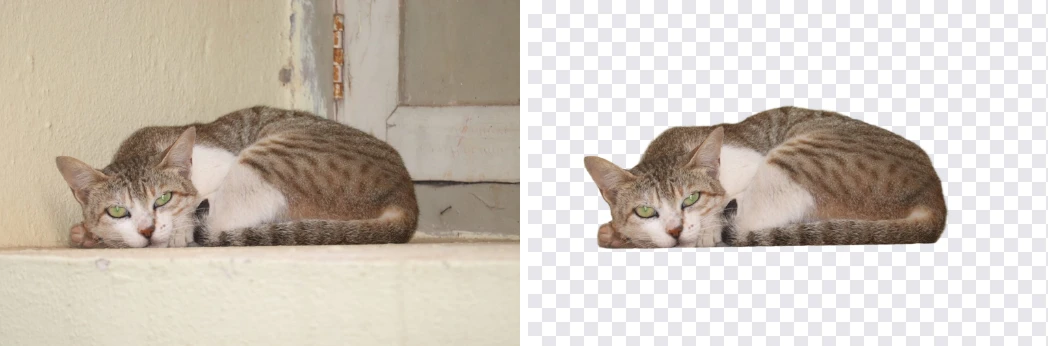
Remove bg from product photos, portraits and pets with a free AI background remover that runs online: there's no app to install, no account and no credit system, and it works as an image background remover for JPG, PNG and WebP files.
We ran it on a set of real photos to see where it does well and where it doesn't. A head-and-shoulders portrait at 3746 × 3746 pixels came out with clean edges around the hair and shoulders. A steaming coffee mug, a dog on a beach, a pair of canvas shoes and a smiling fishmonger in a cap all came out cleanly too. On a desktop PC with a graphics chip the browser could use, each of those took between 1.6 and 2.6 seconds.
The most useful result came from a photo that failed with the first version of this tool. It shows a grey tabby cat sitting on grey soil under some bright green leaves. The older, lighter model kept the leaves and erased the cat: to it, the leaves were the most eye-catching thing in the frame. The model the tool now uses on computers cut the cat out cleanly, ears, whiskers and tail included, in 2.2 seconds. Phones and browsers without WebGPU still get the lighter model, and with that one, cropping the photo down to the cat fixed it in 0.6 seconds, leaving only a faint ghost of a tree trunk at one edge. Why this happens, and how to work with it, is explained further down.
Everything happens in your browser. Your photo is never uploaded, there is no account, no credit system, no limit on how many images you process and no watermark on the result.
How to remove the background from an image
- Add the photo. Click the upload box, drag a JPG, PNG or WebP file onto it, or simply paste an image with Ctrl+V (Cmd+V on a Mac) anywhere on the page. That last one is handy for screenshots: copy, paste, done. Files up to 50 MB are accepted.
- Wait for the cut-out. The tool starts as soon as the image is added. The very first time, it downloads the AI model, about 115 MB on a computer (88 MB on a phone); you'll see a progress bar. That download happens once. The browser keeps the model, so the next time you visit, the tool starts much sooner.
- Choose the background. Transparent is the default and shows the result on a chequerboard pattern. White puts the subject on pure white. Color lets you pick any colour with the colour picker, which is useful for matching a brand colour or a slide template.
- Choose the file format. With a transparent background, the download is always a PNG, because that's the format that keeps transparency. With a white or coloured background you can choose PNG or JPG; JPG makes a much smaller file.
- Download. The file is saved with "-no-bg" added to the original name, so you won't overwrite your original by accident.
Under the result you'll see the image dimensions, how long the processing took, and which engine and model did the work, for example GPU (WebGPU) · BiRefNet or CPU (WebAssembly) · ISNet. The output always has exactly the same dimensions as your original. Nothing is cropped or resized.
Transparent, white or a colour: which background to choose
Pick the background by where the image is going, not by what looks nicest in the preview.
- Transparent PNG is for images that will sit on top of something else: a logo on a slide, a product on a website section with its own background colour, a person dropped into a collage or a YouTube thumbnail, a sticker. Anything you're going to place in another design should stay transparent so that the design decides what's behind it.
- White is for marketplaces, catalogues and documents. Many online stores want product photos on pure white, and a white background also prints cleanly on ordinary paper.
- A colour is for finished images that need to match something: a team page where every headshot sits on the same brand blue, or a set of product cards on a pastel background. Use it when you want a final image rather than a building block.
A practical warning about formats: JPG cannot store transparency at all. If you save a transparent cut-out as JPG anywhere (here the tool won't let you, but other programs will), the transparent area turns into a solid colour, usually black or white. If an app tells you it "lost the transparency", that's almost always what happened. Keep cut-outs as PNG until the very last step.
PNG files of photos are large. In our tests, the 3746 × 3746 portrait came out as a 2,534 KB transparent PNG, while the same cut-out on white saved as JPG was 393 KB. The 3940 × 2686 coffee mug was 3,195 KB as PNG and 597 KB as JPG. That's normal: PNG stores every pixel losslessly plus the transparency channel, while JPG compresses and has no transparency to store. If you need it smaller and you don't need transparency, choose White or Color and JPG. If you need transparency and a smaller file, scale the image down to the size you'll actually use before saving. The image compressor can reduce PNGs by resizing them to a target size.
How to check that a PNG really is transparent
A lot of "it didn't work" messages about transparent images turn out to be the image viewer, not the image. The Windows Photos app, many email clients and some chat apps show transparent areas as white or black, so a perfectly good transparent PNG looks as if it still has a background. Three quick ways to check:
- Drag the PNG into a new browser tab. Most browsers show it on a plain background; if the area around the subject matches the tab's background colour rather than the original photo, it's transparent.
- Insert it into a slide in PowerPoint, Keynote or Google Slides on top of a coloured shape. Transparent areas let the colour show through.
- Open it in any image editor that shows a chequerboard behind transparent pixels, like the preview on this page does.
If the area really is solid in all three, the file was converted to a format without transparency somewhere along the way, usually by an app that saves everything as JPG.
How the AI decides what to keep
On computers with WebGPU, the tool runs BiRefNet, a segmentation model published as open source under the MIT licence, in its "lite" version and in a build adapted so that the whole model runs on the graphics card. Phones, browsers without WebGPU and the rare graphics card where BiRefNet fails get ISNet, a smaller model under the same licence, and the switch happens automatically. Both run through ONNX Runtime in your browser, and the pipeline is adapted from erase-bg, another MIT-licensed open-source project. The model looks at a version of your photo resized to 1024 × 1024 pixels and produces a "mask": a grey-scale map where white means "subject", black means "background" and the shades in between are partial transparency. The tool then scales that mask back up to your photo's full size and uses it as the alpha channel. Because the mask has soft values rather than just on and off, edges like hair and fur fade out gradually instead of being cut with scissors.
The important word is salient. Both models were trained on a task called dichotomous image segmentation: separating the main object in a picture from everything else. Neither knows which object you care about. They pick whatever stands out most: the thing in focus, with the strongest contrast against its surroundings, usually near the centre. In a portrait, that's the person. In a product photo, it's the product. BiRefNet looks at the whole picture and at fine detail together, which is how it got our grey-on-grey cat right where the lighter model chose the bright green leaves. On a photo where something else really dominates the frame, either model can still pick the wrong thing.
Two consequences follow, and they're the most useful things to know about any automatic background remover:
- Make the subject the obvious subject. If something else in the frame competes for attention, crop it out before you run the tool. Our cat went from failure to success with nothing but a crop. The image cropper is one click away.
- Fine detail is judged at 1024 pixels. On a 4000-pixel photo, the mask is computed at about a quarter of the photo's width and then smoothly scaled up. Edges stay smooth, but individual strands of flyaway hair or the gaps in a chain-link fence can come out softer than in the original. For most uses you won't notice. For a high-end product shot of a fluffy toy, you might.
Getting a clean cut-out: what makes the biggest difference
Most of the quality is decided before you open this page, when the photo is taken. If you're photographing something specifically to cut it out later, these help most, roughly in order of impact:
- Contrast between subject and background. A dark product on a light wall, a person in front of a plain door. The model separates things by how different they look, so make them different.
- A background that's simpler than the subject. Busy wallpaper, shelves full of objects and leafy gardens all compete for the model's attention.
- Sharp focus on the subject. A blurred background helps (that's why portrait mode photos cut out so well), but a blurred subject makes the edges uncertain.
- Even light. Strong shadows on the background are sometimes treated as part of the subject, especially a hard shadow directly under an object.
- Some space around the subject. Don't crop it so tight that edges touch the frame. A little room helps the model see the full outline.
And when you already have the photo and it's not ideal: crop to the subject first, and if the subject is small in the frame, crop and then upscale before removing the background. The mask is judged at 1024 pixels, so a subject that fills more of those pixels gets a more detailed edge. Our blog has a full comparison of whether to remove the background or upscale first.
Edges, hair and fur: what to expect up close
Zoom into any cut-out at 100% and the edge tells you how well it went. Three things are normal and worth understanding before you decide a result is "wrong".
The edge is soft, not hard. The mask has shades of grey, so the outermost pixels of the subject are partly transparent. On hair, that's exactly what you want: individual strands fade into the background instead of being chopped off. On a product with a crisp outline, such as a box or a phone, the edge can look a pixel or two softer than in the original. Once the image is shown at normal size, that softness is invisible; it only shows when you zoom in.
Partly transparent pixels keep a trace of the old background. A strand of hair photographed against a green hedge carries a little green in it. Put the cut-out on white and you may see a faint green tinge along the hairline; on a dark background, a light background from the original shows as a pale outline. This is called colour spill, and every background remover produces some. The practical fix is to choose a new background close in brightness to the old one, or to photograph against a neutral grey or white wall when you know you'll be cutting the subject out.
Gaps inside the subject may or may not be cleared. The space between an arm and the body, or the inside of a mug handle, is background, and the model usually clears it. When the gap is small or the background there is in shadow, it sometimes leaves it. Check the handles, arms and gaps before you publish.
Removing backgrounds from many photos
The tool processes one image at a time; there's no batch mode. In practice that's less of a limitation than it sounds, because once the model is loaded each photo takes about two seconds on a computer with WebGPU. A few habits make a series of photos quick:
- Keep the tab open. The engine is set up once per page load. The tool starts that in the background as soon as you move towards the upload box, and in our tests the first photo then took about 5 seconds instead of 10. Reloading the page repeats it. Leave the page open and keep feeding it images.
- Paste instead of browsing. Copy an image in your file manager or photo app and press Ctrl+V on this page. It starts processing straight away.
- Set the background once. The background choice stays selected between images, so if you're doing a whole catalogue on white, you only pick White once.
- Shoot the series the same way. If all your product photos have the same background and lighting, they'll all cut out the same way, and you can check them quickly side by side afterwards.
Speed: GPU, CPU and the first visit
Real timings from our tests, all on the same desktop PC:
- First use, model not yet downloaded: about 21 seconds in total in our test, roughly 12 of them for the 115 MB model download on a fast connection. On a slower connection that part takes longer, but only once.
- Model cached, GPU available (WebGPU, BiRefNet): 1.6 seconds for photos around 1 megapixel, 2.2 to 2.6 seconds for 8 to 10.6 megapixel photos. The first photo after opening the page takes longer while the engine is prepared.
- Model cached, CPU only (WebAssembly, ISNet): 10.4 seconds for the 960 × 1280 mug and 12.2 seconds for the portrait.
The GPU path needs a browser with WebGPU switched on. Recent Chrome and Edge on Windows, macOS and ChromeOS have it; other browsers fall back to the CPU and the lighter model. The CPU path works everywhere, just more slowly. Ten seconds is fine for one photo and tedious for fifty. The engine line under the result tells you which one ran.
Phones work too. They use the lighter model, an 88 MB download, so do the first run on Wi-Fi rather than mobile data. After that it's cached on the phone like on a computer. On difficult photos, such as a subject that blends into its background, crop to the subject first.
What people use a background remover for
Product photos for online shops
This is the most common job, and the one with the strictest rules. Amazon's main product image, for example, has to be on a pure white background (RGB 255, 255, 255) with the product filling roughly 85% of the frame, and Amazon recommends at least 1000 pixels on the longest side so shoppers can zoom; check Seller Central's current image guide before you upload, because these rules change. A workflow that meets them: remove the background here, choose White, download as JPG; then, if the product sits too small in the frame, crop it so it fills most of the square in the cropper. If the photo is under 1000 pixels, run it through the image upscaler at 2x. Our step-by-step guide to a white background product photo covers lighting and shadows as well.
A worked example: supplier photo to listing image
Here's one of our test photos taken all the way through, with the real numbers at each step. The starting point was a product photo of a mug, 960 × 1280 pixels, 115 KB, shot on an ordinary background.
- Remove the background. 1.6 seconds with the model already loaded. With White selected and saved as JPG, the result was 38 KB. As a transparent PNG it would have been 268 KB.
- Make it square. Most marketplaces display square images. A 960 × 1280 photo becomes a 960 × 960 square in the cropper, with the mug kept large in the frame rather than floating in white space.
- Make it big enough to zoom. 960 pixels is under the 1000-pixel mark stores commonly ask for. A 2x pass in the image upscaler turns 960 × 960 into 1920 × 1920, which is comfortably above it.
- Check the file size. If the store or your own site has an upload limit, the compressor can bring the final JPG to a target size in KB.
The whole sequence takes a couple of minutes per product once you've done it a few times, and nothing in it involves uploading the photo to a third party.
Headshots and profile pictures
A consistent team page usually means every headshot on the same background. Cut each person out, choose Color, and use the same hex value for every photo. People photograph well for this tool because faces and shoulders are high-contrast, in-focus subjects. Hair against a busy background is the hardest part; a plain wall behind the person solves most of it.
Thumbnails, slides and collages
YouTube thumbnails with a cut-out face, presentation slides with a product floating on a branded background, social graphics: all of them start with a transparent PNG. Keep the cut-out transparent and do the layout in whatever design tool you use. If you're making thumbnails, the YouTube thumbnail size guide covers the 1280 × 720 format and where text stays readable.
Pets
Our dog photo cut out cleanly, fur included, because the dog stood out from a sandy beach. Pets on a sofa of the same colour as their fur are a different story. Put them on a contrasting blanket, or crop tightly.
Logos and simple graphics
A logo photographed or scanned on white paper can be turned into a transparent PNG. For logos with thin lines or small text, check the result closely. Flat graphics are easier to cut out with colour-based tools than with a model trained on photos, and it's always better to ask whoever made the logo for the original vector file.
ID and passport photos: check the rules first
It's tempting to fix a photo taken against a cream wall by putting it on white. Be careful: many passport and visa rules say the photo must not be digitally altered, and some offices check for edited backgrounds. Read your country's requirements first; our passport photo size guide links to the official rules for several countries. When in doubt, retake the photo against a plain light wall.
What happens to your photos
Your photo stays on your device. The page downloads two things from the internet: the ONNX Runtime engine (from the jsDelivr content network) and the AI model file (from Hugging Face, where the model is published). Neither download contains or sends your image. Once they're loaded, the cut-out is computed entirely in your browser's memory, and the result is handed to you as a download.
The model is stored in your browser's cache storage so you don't download it again on every visit (about 115 MB on a computer). If you want to free that space, clearing this site's data in your browser settings removes it; it will simply be downloaded again next time you use the tool.
One more privacy step worth taking: the cut-out PNG you download doesn't carry your camera's EXIF data, because it's a newly drawn image, but the original photo on your device still does. If you share originals as well, run them through the metadata remover to strip GPS location and camera details.
Limits: when the result won't be good
Every automatic background remover has photos it can't handle. Here are the ones we'd warn you about, based on how the model works and what we saw in testing:
- Low contrast between subject and background. The grey cat on grey soil is the textbook case. Crop tightly, or reshoot against something different.
- Several subjects. A group photo where you only want one person, or a table full of products where you only want one. The model may keep all of them, or the most striking one. Crop to the one you want.
- Glass, water and see-through objects. A wine glass is mostly the background seen through glass. The model has to guess what's object and what's background, and the result is usually either too solid or too faint.
- Shadows and reflections. They're removed along with the background most of the time. If you want a natural shadow under a product, add one in a design tool afterwards.
- Things the subject is holding or touching. A hand on a railing, a person leaning on a car. The boundary between "subject" and "background" is a judgment call and the model may make a different one from you.
- Very fine detail on very large photos. As explained above, the mask is judged at 1024 pixels. Wisps of hair on a 24-megapixel photo will be softer than in the original.
There's no manual brush to paint missed areas back in or erase leftovers. When the automatic result is close but not quite right, the most reliable fix is to change the input: crop, increase the contrast slightly, or upscale a small subject and run it again.
Troubleshooting
The model download fails or stops
The model comes from huggingface.co. Some office and school networks block it, and some browser extensions block large downloads. Try another network, or disable content blockers for this page. If the download was interrupted, reloading the page starts it again.
It's slow
Look at the engine line under the result. If it says CPU (WebAssembly), your browser isn't offering WebGPU. Updating Chrome or Edge, or using one of them instead of another browser, usually switches you to the GPU path, which in our tests was about five times faster and uses the better model.
It kept the wrong thing
The model chose the most eye-catching object. Crop the photo so your subject dominates the frame, then run it again.
There's a dark or light fringe around the edges
Partly transparent edge pixels still carry a little of the old background's colour. On a background of a very different colour, that shows as a thin fringe. Placing the cut-out on a background similar in brightness to the original hides it. For product photos on white, starting from a photo taken against a light background avoids it altogether.
The PNG is too big to upload
If you don't need transparency, choose White or Color and download as JPG. If you do, make the image smaller first. The compressor can bring a PNG under a size limit by resizing it.
The transparent background turned black or white in another app
That app (or a step in between) converted the image to JPG, which can't store transparency. Use the PNG file directly, and if you're uploading to a platform that converts everything to JPG, choose the background colour here yourself instead.
How this compares with other background removers
Background removal is now built into a lot of software, and it's worth knowing what you already have.
On an iPhone or iPad with iOS 16 or later, you can touch and hold the subject of a photo to lift it from the background and copy or share it. It's excellent for a quick sticker or message. It's less convenient when you need a specific background colour, a file at full resolution on a computer, or a batch of product shots.
On Windows 11, the Paint app has a background removal button. It's quick for a single image already on that PC.
Photo editors such as Photoshop and its "Remove Background" and "Select Subject" functions give you the automatic result and the brushes to fix it by hand. That's the professional choice when every edge has to be perfect. It costs money and takes time to learn.
Online background removal services generally upload your photo to their servers. Many give you a free low-resolution download and charge credits for full resolution. Some use larger models than a browser can run and handle difficult hair very well.
This tool is for the common case done well and privately: a full-resolution cut-out of a clear subject, transparent or on any colour, on any device, with no upload, no account and no limit. When a photo is genuinely difficult, a professional editor with manual brushes will beat any one-click tool, including this one.
What to do next with your cut-out
- Learn the different ways to make a background transparent, including when a colour-based removal works better than AI.
- Follow the white background product photo guide for marketplace-ready listings.
- Enlarge a small cut-out, or a small photo before cutting it out, with the AI image upscaler.
- Trim the result to a square, 4:5 or 16:9 frame with the image cropper, and bring a large file under an upload limit with the image compressor.
- Strip location and camera details from the original photos with the metadata remover before you share them.