
What a photo says about you without you noticing
Every photo from a phone or camera carries a block of hidden information alongside the picture: when it was taken, on what device, with which settings, and very often exactly where. This metadata remover first works as an EXIF viewer, showing you what's inside the file, and then deletes the photo metadata without touching a single pixel of the image.
It's a free metadata remover that works online for JPG, PNG and WebP: an EXIF metadata remover for camera details and GPS location, and an AI image metadata remover for Content Credentials and the prompts that image generators save.
We ran four real photos through it before writing this page, and the numbers are worth seeing. A street photo taken on an iPhone in Washington, D.C. carried 45 separate fields, including six location fields: GPS latitude, longitude and altitude precise enough to find the spot on a map. A photo of a cat carried 51 fields, also with GPS. A photo of a dog on a beach carried 180 fields: the GPS position, the camera and lens, five different dates, and a long tail of editing history from the software it passed through, plus copyright and caption fields. A portrait downloaded from a stock photo site carried 18 fields and no GPS at all. Removing all of it took between 6 and 37 milliseconds per photo.
Most people never see any of this, because phones and photo apps don't show it unless you go looking. It travels with the file anyway: when you email it, upload it to a marketplace listing, share a cloud link or send it as a document in a chat app.
The tool runs entirely in your browser. Photos are never uploaded, so the information you're trying to protect never leaves your device on its way to being removed.
What we found inside four real photos
Numbers like "45 fields" are abstract, so here's what those fields actually said. All four photos are public, freely licensed images, so describing their contents doesn't expose anyone; we've still kept the locations vague.
The iPhone street photo named the phone (an iPhone 4S) and the exact version of the phone's software (5.0.1). It recorded the date and time down to the second: a Sunday morning in November 2011. Its GPS fields placed it on a specific block of G Street in Washington, D.C., gave the altitude as 47 metres, and recorded which way the camera was pointing: 137 degrees, roughly southeast. Put together, someone could stand on the same spot, face the same direction and know what time of day the photographer was there.
The cat photo came from a budget Samsung phone. The metadata gave the exact model number and the phone's firmware build string, a date and time in May 2019, coordinates in the north of Singapore and an altitude of 8 metres. It also carried a unique image ID, a value that can tie copies of the same photo together even after it's renamed.
The dog photo was the richest. It came from a Nikon D300 with a 35 mm f/1.8 lens, and recorded the camera body's serial number. Anyone holding two photos with the same serial number knows they came from the same camera, even if they were posted under different names. The photographer's full name appeared three times, in three different metadata standards. GPS put the photo on a beach in Venezuela. And because the photo had been edited in Adobe Lightroom 4.3 on Windows, the XMP block carried the edit itself: white balance temperature and tint, saturation, noise reduction, vignetting, and individual hue and saturation adjustments for reds, oranges, yellows, greens, aquas, blues and purples, plus an editing history and the IDs of the documents it was derived from. That's where most of its 180 fields came from.
The stock portrait had 18 fields and no location: the stock agency had already cleaned most of it, leaving camera details and some descriptive fields.
The pattern is typical. Phones add location by default. Dedicated cameras add serial numbers and lens details. Editing software adds its own history on top. And files that have passed through a professional platform are often partly cleaned already, but rarely completely.
How to remove metadata from a photo
- Add your photos. Drop one or more images onto the upload area, or click it to choose files. You can add up to 50 photos at a time, each up to 100 MB.
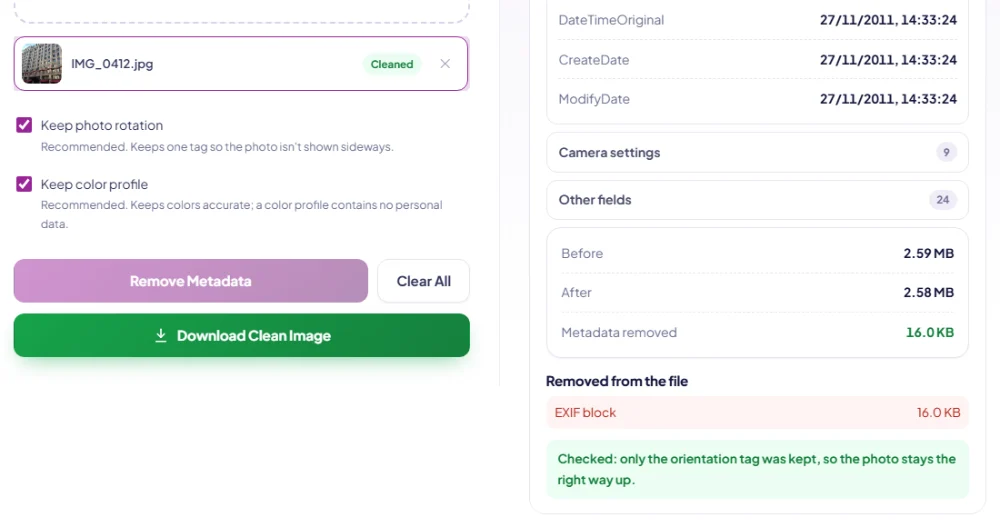
- Read the report. Each photo appears in a list with the number of fields found. Click a photo to see what it contains, grouped into location, camera and device, dates, author and copyright, titles and captions, camera settings and other fields. If a photo contains GPS coordinates, a warning says so at the top.
- Check the two options. "Keep photo rotation" and "Keep color profile" are on by default. The section below explains what they do; for almost everyone, leaving both on is right.
- Click Remove Metadata. The tool cleans every photo in the list. Each row turns to "Cleaned", and the report for each photo shows the before and after size and exactly which blocks were removed.
- Download. One photo downloads as a single file; several download together as a ZIP. Each cleaned file has "-clean" added to its name, so the originals stay untouched.
After cleaning, the tool reads the new file back with the same metadata reader it used at the start and tells you what's left. In our tests the answer was "no metadata left" for three of the four photos. For the iPhone photo it was "only the orientation tag was kept", which is the rotation option doing its job.
What the report shows, and what each group means
The fields are grouped so you can see the sensitive ones first.
- Location. Latitude, longitude, altitude, sometimes the direction the camera was pointing and a timestamp from the GPS. These come from the phone's location service at the moment of the shot. For a photo taken at home, they point at your home.
- Camera and device. Make and model ("Apple iPhone 14 Pro", "Canon EOS R6"), lens, the software that last saved the file, and on some cameras a body or lens serial number. Serial numbers can link photos from the same camera together across different accounts.
- Dates. When the photo was taken, when it was digitised and when it was last modified, often with the time zone offset. The dog photo had five separate dates.
- Author and copyright. Names entered in the camera's settings or added by editing software and photo agencies. Useful for photographers; a surprise for people who set their name in a camera years ago and forgot.
- Titles, captions and keywords. Descriptions and tags added in Lightroom, a photo library or a stock agency. These can contain names of people, places or clients.
- Camera settings. Exposure time, aperture, ISO, focal length, flash, white balance. Mostly harmless, mostly interesting to photographers.
- Other fields. Everything else: thumbnail information, editing history from XMP, software-specific notes. On the dog photo this group alone had 148 entries.
Underneath, the "Removed from the file" list shows the physical blocks that were cut out: the EXIF block, the XMP block, the IPTC/Photoshop block, comments, text chunks in PNG files, and any extra data stuck on the end of the file. On the cat photo, the EXIF block alone was 64 KB.
Lossless: why your photo looks exactly the same afterwards
Most ways of stripping metadata quietly re-save the image. Open a photo in an editor, export it, and the metadata is gone, but so is a little quality, because the editor decodes the JPEG and compresses it again. Do that a few times and it shows.
This tool doesn't re-save anything for JPG, PNG and WebP. Those formats store metadata in separate, labelled blocks next to the compressed image data. The tool reads the file's structure, drops the metadata blocks, and copies the image data across byte for byte. Nothing is decoded and nothing is re-compressed.
We checked this rather than assuming it. For six test photos, we decoded the original and the cleaned file and compared every pixel value. The number of bytes that differed was zero in every case. The file sizes dropped by exactly the size of the removed blocks: the cat photo went from 4,151,395 to 4,072,680 bytes, a difference that's almost entirely the 64 KB EXIF block plus 13 KB of other app data. A photo that had no metadata to begin with came out byte-for-byte identical to the original.
Other formats are handled differently. If you add an AVIF, BMP or TIFF file, or a HEIC photo in Safari (the only browser that can open HEIC), the tool can't cut blocks out of it losslessly, so it redraws the image and saves it as PNG. That also removes every bit of metadata, and the report tells you it happened. PNG is lossless, so the pixels are preserved, though the file will often be larger than the original.
Where the data actually lives inside the file
For the curious, here's what "cutting out the blocks" means in each format, which also explains why the result can be lossless.
- JPEG files are a sequence of segments, each starting with a two-byte marker. The picture itself sits in the "scan" segments near the end. Metadata lives in application segments near the start: APP1 holds EXIF (and, separately, XMP), APP13 holds Photoshop and IPTC data, and comment segments hold free text. Some phones also append extra images, such as depth maps or HDR gain maps, after the end-of-image marker, described by an MPF segment. The tool keeps the segments the decoder needs (quantisation tables, Huffman tables, frame and scan data, the JFIF header, the Adobe colour-transform marker and, if you choose, the ICC profile) and drops the rest, including anything after the end of the image.
- PNG files are a sequence of chunks, each with a four-letter name. Text chunks (tEXt, zTXt, iTXt) hold captions, author names and software notes; eXIf holds camera metadata; tIME holds a modification date. The tool keeps the chunks needed to display the image correctly, including transparency, gamma and animation chunks for animated PNGs, and drops the rest.
- WebP files use a RIFF container with named chunks. EXIF and XMP chunks are removed, the ICC chunk is kept or removed according to your choice, and the header flags that announce which chunks are present are updated so that the file stays valid.
In all three cases, the compressed picture data is copied unchanged, which is why our pixel-by-pixel comparison found no differences.
The two options: keep rotation, keep color profile
Keep photo rotation
Phones don't actually rotate photos when you hold the phone upright. They save the image sideways, the way the sensor captured it, and add a single tag that says "display this rotated by 90 degrees". Our iPhone test photo was stored exactly like that: orientation 6, meaning rotate 90 degrees clockwise.
If that tag is removed along with everything else, the photo shows up sideways in most apps. So with "Keep photo rotation" switched on, the tool removes the entire metadata block and then writes back a tiny new one that contains only the rotation tag: 26 bytes, no GPS, no camera, no dates. If the photo's orientation is already normal, nothing is written back at all. There's nothing personal in a rotation value, so there's no reason to turn this off unless you specifically want a file with zero metadata and you're prepared to rotate the image yourself.
Keep color profile
Many photos include a color profile, a description of the color space the picture was saved in. Recent iPhones, for example, save photos in Display P3, a wider color space than the standard sRGB. Without the profile, apps assume sRGB and the colours shift: reds and greens look slightly duller. A color profile describes a color space, not a person; it contains no location, no device serial and no names. Keep it on unless you have a technical reason to strip it.
When to turn both options off
There's one situation where you might want a file with no metadata of any kind: when a form, a contest or a publication asks for "no EXIF" and checks for it automatically. With both options off, the tool writes no rotation tag and drops the color profile, so the file carries nothing but the image. If the photo was stored sideways, rotate it afterwards in the cropper, which saves the turned image as new pixels rather than as a tag.
Cleaning a whole folder
The tool takes up to 50 photos at a time, and cleaning is fast: our largest test photo took 37 milliseconds. The slower part is reading each photo's metadata for the report, which takes a moment per file. For a large folder, add photos in groups of 50, download each ZIP, and keep the cleaned folders separate from the originals so you always know which set is safe to share. Every cleaned file ends in "-clean", which makes a mixed-up folder easy to sort.
Where metadata leaks, and where it usually doesn't
Whether the hidden data reaches other people depends on how you share the photo. No platform publishes a clear guarantee about this, and behaviour changes between apps and versions, so treat the following as a general picture and test your own setup with this tool (send yourself a photo, download it, drop it in here and look).
Usually kept, original file arrives intact:
- Email attachments, in Gmail, Outlook, Apple Mail and most other clients.
- Shared links to cloud storage: Google Drive, Dropbox, OneDrive and similar send the original file.
- AirDrop, Bluetooth, USB cables and memory cards make exact copies.
- Chat apps when you send the photo as a document or file rather than as a photo.
- Many forums, small marketplaces, website builders and content management systems that store the file you upload.
Usually stripped from the published copy:
- The big social networks generally re-process uploaded photos and remove location and camera data from the version other people see.
- Chat apps that compress photos in their normal "send photo" mode generally remove it too.
Two caveats matter. First, even when a platform strips metadata from what it publishes, it received the original first; the data reached the company even if it didn't reach the public. Second, "usually" isn't "always". If a photo was taken somewhere you'd rather not reveal, clean it yourself before it goes anywhere. It takes a few milliseconds.
Who should strip metadata before sharing
- Anyone selling things from home. A marketplace listing photographed in your living room can carry the coordinates of your living room. Buyers don't need them.
- People renting out a room or subletting a flat. Interior photos posted to find a tenant show what's inside the home; with GPS attached, they also show exactly which home it is, before you've decided who you trust with that.
- Parents sharing photos of children. School, nursery, the park you visit every Saturday: photos taken there carry those places with them.
- People on dating apps and in online communities where you want to share a photo without sharing where you live or work.
- Journalists, researchers and anyone handling sensitive sources. A photo passed on by a source can identify the source's device or location.
- Businesses sending client photos. Photos of a client's property or products may carry details of where and when the shoot happened, and your staff's names from camera settings.
- Anyone publishing photos on a website. Images you upload to your own site are usually served as-is. Metadata also adds weight: on our cat photo it was 77 KB that every visitor would download for nothing.
One group should think twice: photographers who want credit. Removing metadata also removes your name and copyright notice. If you want those to stay with the image, don't strip it, or strip only GPS with a professional tool such as ExifTool, which can remove specific tags and leave others.
A quick routine before listing something for sale
Marketplace photos are the most common way people accidentally publish their home address, because the photos are taken at home and uploaded as files. A routine that takes under a minute:
- Take the photos as usual, then copy them to your computer, or open this page on your phone.
- Drop all of them into this tool at once. Glance at the report: any photo showing the GPS warning is one you'd have published with your location.
- Click Remove Metadata and download the ZIP.
- Look at the pictures themselves for anything identifying: a house number on the door, an envelope with your name on it, a view out of the window. Crop those out with the cropper.
- If the marketplace has a size limit, run the cleaned files through the compressor. Compression doesn't bring metadata back.
Metadata on your own website
If you publish photos on a website you run, metadata matters for three separate reasons.
Privacy. Most website builders and content management systems serve the file you uploaded, metadata included. A blog post about a renovation, illustrated with phone photos, can publish the coordinates of the house being renovated.
Weight. Metadata is downloaded by every visitor and does nothing for them. On our cat photo it was 77 KB. Across a gallery of thirty photos that's a couple of megabytes of nothing.
Credit. There's one case where you may want to keep some metadata: Google Images can show the creator, credit line and copyright notice for an image when that information is stored in the image's IPTC metadata. If you're a photographer publishing your own work and you want that credit to appear, keep those fields and remove only the location, using a tool that can remove individual tags, such as ExifTool. For everyone else, removing everything is the simpler and safer default.
Stopping your phone from adding location in the first place
Cleaning photos one by one works, but if you rarely want location in your photos, it's simpler to stop it being recorded.
- iPhone: Settings, Privacy & Security, Location Services, Camera, then choose Never. New photos won't carry GPS coordinates. Existing photos keep theirs.
- iPhone, per share: when you share from the Photos app, tap Options at the top of the share sheet and switch off Location. This applies to that share only; iOS doesn't remember it.
- Android: open the camera app's settings and switch off location tags, or remove the Location permission from the camera app in the system settings. The wording differs between manufacturers.
A note on Google Photos: it can remove a location it estimated or that you added by hand, but by its own help pages it can't remove GPS coordinates that the camera embedded in the file. For those, use this tool on a downloaded copy.
Five common myths about photo metadata
"I turned off location, so my photos are safe." Turning off location for the camera only affects photos taken from then on. Every photo already in your library keeps the coordinates it was saved with, and they go wherever the file goes.
"Social media removes it, so it doesn't matter." The big networks generally do strip location from the copy they publish. But they receive the original first, and much sharing doesn't go through a social network at all: email, cloud links, marketplace listings, school portals, job applications and messaging apps in file mode all carry the original file.
"Converting to PNG gets rid of metadata." Not reliably. PNG has its own chunks for camera metadata and text, and many converters copy the EXIF data across. And the conversion re-encodes the image, so you lose the lossless benefit for nothing. Use a tool that removes the metadata directly and then check the result.
"Screenshots don't have any metadata." Mostly true: a screenshot has little hidden data compared with a camera photo, though some systems record the date and the software. The bigger risk with screenshots is what's visible in them: a notification banner with a name, a map, an address bar, a battery icon showing your phone model. Check the picture, not just the file.
"Removing metadata lowers the quality." Only if the tool re-saves the image. Cutting out the metadata blocks, as this tool does for JPG, PNG and WebP, leaves the picture data untouched. Our comparison of six photos, pixel by pixel, found no difference at all.
Removing AI metadata from generated images
Images made or edited with AI tools often carry extra labels. Adobe Firefly and OpenAI's image tools add Content Credentials (C2PA), a signed record of how the image was made. Many generators also write an IPTC field that marks a picture as AI-generated, and Stable Diffusion interfaces such as AUTOMATIC1111 and ComfyUI save the whole prompt, the seed and the model name in the PNG file.
This metadata remover looks for all three and names them at the top of the report, then removes them along with everything else. In a JPEG it drops the XMP block and the C2PA segment, in a PNG the text and C2PA chunks, and in a WebP every chunk that isn't image data. We tested one file of each type carrying a C2PA block and the IPTC AI label, plus a Stable Diffusion prompt in the PNG: none of it was left in the cleaned files, and all three still opened normally.
Two things it can't do. Some AI images also carry an invisible watermark in the pixels themselves, such as Google's SynthID; that isn't metadata, so no metadata remover takes it out. And removing a label doesn't change where an image came from: many platforms, and in some places the law, expect AI-generated images to be disclosed, so check the rules where you post. The most common good reason to strip this data is privacy, because a prompt can say more about you than you meant to share.
What removing metadata doesn't remove
Metadata is only the hidden part. The visible part of a photo can give away just as much, and no metadata tool touches it.
- What's in the picture. A street sign, a house number, a car registration, a school logo on a jumper, a recognisable view from a window. If it's visible, it's shared. Crop it out with the image cropper before you post.
- Reflections. Sunglasses, windows and shiny surfaces show surprising amounts of what's opposite them.
- The file name. Names such as IMG_20250614_183012.jpg contain the date and time. Rename files if that matters.
- Information inside a document. This tool handles image files. PDFs, Word documents and RAW camera files have their own metadata and need other tools.
- Videos. Phone videos also carry location. This tool doesn't process video.
Troubleshooting
It says no metadata was found
The file may already be clean. Screenshots, images saved from most websites, images exported from design tools and photos that have passed through a social network often have little or none. That's a good result, not an error.
The cleaned photo appears sideways
"Keep photo rotation" was probably switched off. Turn it on and clean the original again. The tool will keep the single rotation tag and the photo will display upright.
The colours look slightly different
"Keep color profile" was probably switched off and the photo used a wide color space. Clean the original again with the option on.
The file is barely smaller
That's expected. Metadata is usually a few kilobytes to under 100 KB, small next to the photo itself. The point is privacy, not size. To make files smaller, use the image compressor after cleaning.
"Format not supported"
The browser couldn't decode the file. HEIC photos from iPhones only open in Safari; in other browsers, export them as JPG first (on an iPhone, Settings, Camera, Formats, Most Compatible makes the camera save JPG in the first place). RAW camera formats aren't supported.
The ZIP download is missing a file
Only photos marked "Cleaned" go into the ZIP. Check the list for a photo marked "Failed" and try that one on its own.
How this compares with other ways to remove EXIF data
Windows can remove some properties: right-click a file, choose Properties, open the Details tab, and click "Remove Properties and Personal Information". It's built in and works on JPEGs. It's slow for many files, doesn't show you everything that's there, and doesn't verify the result.
macOS Preview can remove location: open the photo, choose Tools, Show Inspector, open the GPS tab and click Remove Location Info. Other fields stay.
ExifTool is the professional standard: a free command-line program that can read and edit every kind of metadata, remove specific tags and process thousands of files. If you're comfortable with a terminal and need fine control, it's the best tool there is.
Online EXIF removers mostly upload your photo to their server, strip it there and send it back. Some re-compress the image in the process. For metadata in particular, uploading the photo to remove the location data is a strange trade.
This tool covers the everyday case well: see what's there, remove all of it in one click, keep the photo identical, do fifty at once, verify the result, and never upload anything.
Related tools and guides
- Read what EXIF data is for a closer look at every field a camera records and why it's there.
- Follow the step-by-step guide to remove the location from a photo on iPhone, Android, Windows and Mac.
- Crop out house numbers, signs and faces with the image cropper, and bring the cleaned file under an upload limit with the image compressor.
- Making product photos for a listing? The background remover produces a new image with no camera metadata at all, and the image upscaler enlarges small photos for zoom.