
How to Remove Location from a Photo
Most phones save the exact place a photo was taken inside the file. To remove it before sharing, open the metadata remover, add the photo and download the clean copy; the GPS coordinates are gone and the picture itself is untouched. This guide shows how much a location tag really gives away, how to check a photo, how to remove it on every common device, and how to stop it being added at all.
Remove the location in your browser
- Open the metadata remover and add one or more JPG, PNG or WebP photos.
- Look at the report. If the photo has a location, you'll see GPS fields listed under it.
- Leave Keep photo rotation on, so phone photos stay the right way up.
- Click Remove Metadata, then Download Clean Image. Several photos download together as a ZIP.
The photo is processed in your browser and never uploaded. The tool removes the metadata blocks from the file without re-encoding the picture, so there's no loss of quality: in our tests, every pixel was identical before and after.
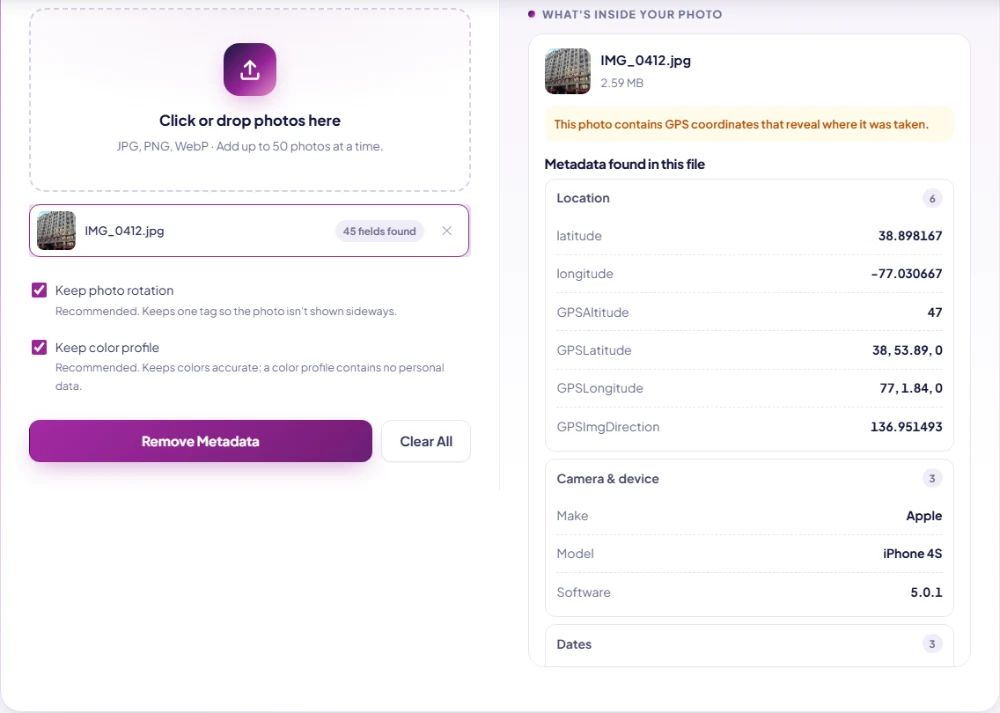
How much a location tag gives away
"Location data" sounds vague. In practice it's a pair of coordinates precise enough to find a front door. We read the hidden data from three openly licensed photos we use for testing:
- An iPhone photo of a building in Washington, D.C., taken in 2011. The coordinates were stored to a hundredth of a minute, roughly 18 metres, and they fell on the same block of G Street as the address in the photo's title. The file also held the altitude, the date and time to the second, the phone model and its software version, and the compass direction the camera was facing: 137 degrees, south-east.
- A Samsung phone photo of a cat from 2019. Coordinates to the nearest second (about 30 metres), the altitude, a GPS timestamp and the exact phone model and firmware.
- A Nikon camera photo of a dog from 2013. GPS coordinates, plus the photographer's name, a copyright line, the editing software and the camera body's serial number.
Those are old devices. Current phones record location at least as precisely. Now picture the same data in a photo of your living room, your child at their school gate, or a bike you're selling from your garage. Anyone who saves the file can open it on a map.
The date and time matter too. Combined with the place, they show where you were and when, and across several photos, a routine.
Check whether a photo has a location
Before removing anything, it's worth knowing what's there. You don't need extra software for that:
- iPhone and iPad: open the photo in Photos and swipe up. If a map appears, the photo has a location.
- Android: in Google Photos, open the photo and swipe up. A location or map in the details means it's tagged. Samsung Gallery shows it under Details.
- Windows: right-click the file, choose Properties, then Details, and scroll to the GPS section. Latitude and longitude mean it's tagged.
- Mac: open the photo in Preview, choose Tools > Show Inspector, and look for a GPS tab.
- Any device: add it to the metadata remover. The report lists the location fields alongside everything else hidden in the file.
Check the actual file you're about to send, not the one in your camera roll. An edited copy, a file exported from a photo app or a picture downloaded from cloud storage can each keep or lose the location differently.
Remove the location on your phone or computer
Every major system has a built-in way. They're fine for an occasional photo; the browser tool is quicker for several at once, and it removes the rest of the camera data too.
- iPhone, when sharing: tap Share, then Options at the top of the share sheet, and turn Location off. The sheet then says "No Location". This only applies to that one share, and the photo in your library keeps its location.
- iPhone, in the library: open the photo, swipe up, tap Adjust under the map and choose No Location. That removes it from the photo in Photos.
- Android: in Google Photos, open the photo, swipe up, tap the edit (pencil) icon by the location and choose Remove location. Samsung Gallery has a similar option when you edit the details. Google Photos also has a setting, "Remove geo location in items shared by link", for photos you share as links.
- Windows: right-click the photo, Properties, Details, then "Remove Properties and Personal Information" at the bottom. Choose to create a copy with all possible properties removed, or select GPS fields to remove from the original.
- Mac: in the Photos app, select the photo and choose Image > Location > Hide Location, or untick the location option when you export. For a file that's already on disk, Preview's Inspector has a "Remove Location Info" button on the GPS tab.
Where photos keep their location, and where they lose it
Some routes strip location for you; many don't. A rough guide, with the caveat that apps change their behaviour:
- Usually stripped: photos published on the big social networks. The platform still receives your original file with everything in it; it just doesn't show the data to other users.
- Usually stripped, sometimes not: photos sent the normal way through messaging apps, which re-compress them. "High quality" or HD sending options are less predictable.
- Kept: photos sent as a document or file in a messaging app, email attachments, files shared from cloud storage, photos uploaded to many forums, websites and small marketplaces, and anything copied on a USB stick or AirDropped with all photo data.
The safe habit is simple: if the location matters, remove it yourself before the photo leaves your device, and don't depend on whichever app is next in line.
Other tools on this site that drop location as a side effect
We checked what happens to location data in our other tools. The image compressor, the image cropper and the upscaler all draw the image onto a canvas in your browser and save a new file. We ran the iPhone photo through the compressor: the result had no camera data at all, no GPS and not even the word "Apple" anywhere in the file, and the picture was still the right way up.
The difference is that those tools re-encode the image. The compressor turned the 2,656 KB original into a 1,017 KB file, which is the point of a compressor but not what you want if you only meant to remove the location. If you need a smaller or cropped image anyway, that one step does both jobs. If you want the photo exactly as it was, use the metadata remover.
Stop your camera adding location
- iPhone: Settings > Privacy & Security > Location Services > Camera, and choose Never. Existing photos keep their locations; only new ones are affected.
- Android: open the Camera app's settings and turn off the location option (often called "Location tags" or "Save location"). The name varies by phone maker.
- Cameras with Bluetooth or GPS: many current cameras copy the location from your phone through their companion app. Turn off location sync in the app if you don't want it.
Turning location off for good has a cost: your photo library can no longer show trips on a map or group pictures by place. A middle way that many people choose is to keep it on, and strip the location from the few photos that go to strangers: listings, forums, public posts and dating profiles.
What removing GPS data doesn't hide
Metadata is only one way a photo gives away a place. Before posting, look at the picture itself:
- House numbers, street signs, car number plates and shop names.
- The view from a window, a distinctive building, a school badge on a uniform.
- Addresses on parcels, letters and screens in the background.
- Reflections in windows, mirrors and glasses.
Cropping is the simplest fix for most of these. The image cropper can cut a house number or a parcel label out of the frame in a few seconds.
Want to know what else hides in a photo besides location? The guide What is EXIF data? walks through every field, from the camera serial number to the editing history.
Frequently asked questions
How do I remove the location from a photo?
Open the metadata remover, add the photo and click Remove Metadata, then download the clean copy. GPS coordinates and the rest of the camera data are removed without re-compressing the image. On an iPhone you can also tap Share, then Options, and turn Location off before sending.
How can I tell if a photo has location data?
Add it to the metadata remover; the report lists any GPS fields. On iPhone, swipe up on the photo to see a map. On Android, swipe up in Google Photos. On Windows, look under Properties > Details > GPS. On a Mac, open it in Preview and use Tools > Show Inspector.
How accurate is the location in a photo?
Usually accurate to a street or a building. In our test, a 2011 iPhone photo's coordinates landed on the same block as the address in the photo's title, and the file also recorded which way the camera was facing.
Do Instagram and Facebook remove location from photos?
Large social networks generally strip location data from the photos they publish. But the platform still receives the original file, and many other routes, like email, cloud links and files sent as documents, pass the location along untouched.
Does WhatsApp remove location from photos?
Photos sent the normal way are usually stripped. Photos sent as a document go through as the original file, location included. Don't rely on the app; remove the location yourself if it matters.
Does removing location reduce photo quality?
Not with the metadata remover. It deletes the data blocks and leaves the image data byte for byte the same. In our tests every pixel was identical before and after.