
YouTube Thumbnail Size
YouTube now recommends thumbnails of 3840 × 2160 pixels in 16:9, with a minimum width of 640 pixels, as JPG or PNG. The file limit is 2 MB when you upload from a phone and 50 MB on a computer. Shorts thumbnails are 9:16 (2160 × 3840). Here's how to hit those numbers, why the old 1280 × 720 still works, and what makes a thumbnail readable at the tiny size most people see it.
The numbers, from YouTube's own help page
| Video thumbnail | Shorts thumbnail | |
|---|---|---|
| Recommended size | 3840 × 2160 | 2160 × 3840 |
| Shape | 16:9 | 9:16 |
| Minimum | 640 pixels wide | 640 pixels tall |
| Formats | JPG or PNG | JPG or PNG |
| File size limit | 2 MB from a phone, 50 MB on a computer | 50 MB on a computer |
| Who can upload | Verified channels | |
If you've seen "1280 × 720, under 2 MB" elsewhere, that was YouTube's recommendation for many years, and most guides still repeat it. It isn't wrong: 1280 × 720 is well above the minimum and is accepted everywhere. The newer 4K figure matches how videos are watched now, on large TVs and high-resolution laptops, where a 720p thumbnail can look soft.
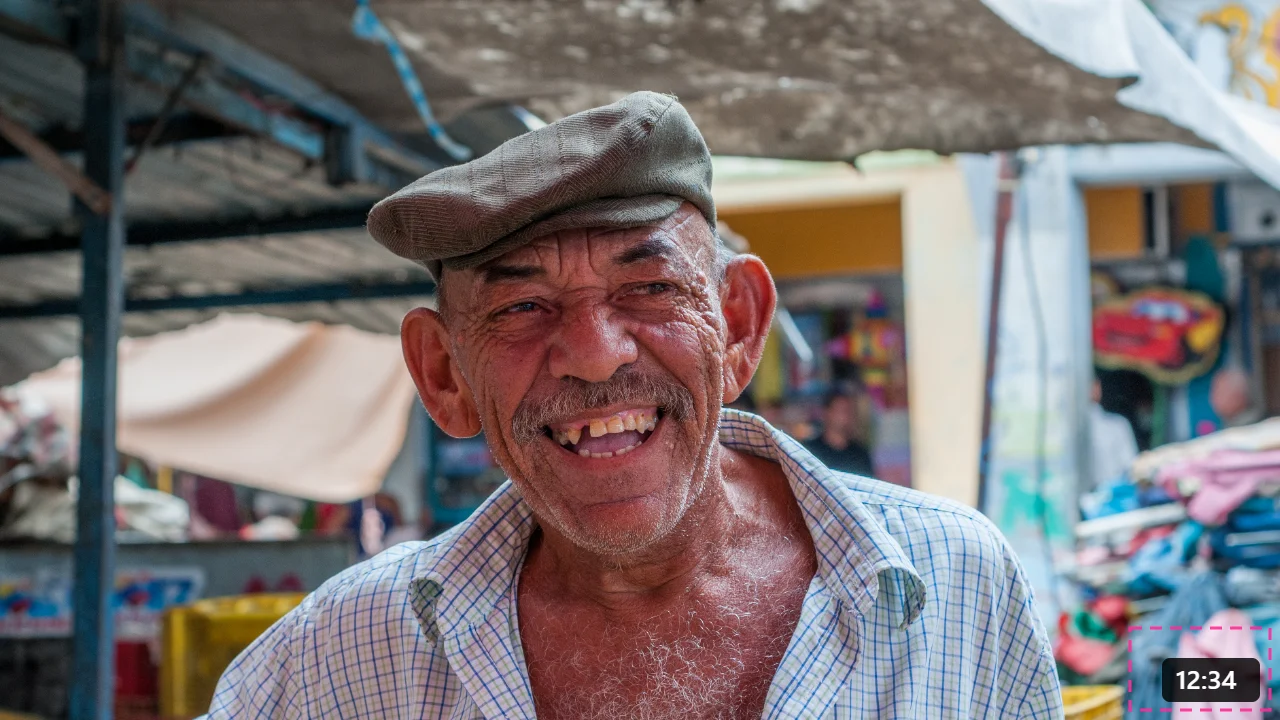
The practical rule: make the thumbnail at 3840 × 2160 if your source image allows it, 1920 × 1080 if that's what you have, and never below 1280 × 720 if you can avoid it.
What file size to expect
4K sounds heavy. As a JPG, it isn't. We made 16:9 thumbnails from two ordinary photos and saved them the way our tools do:
- 3840 × 2160 as JPG at 92% quality: 1,323 and 1,393 KB. At 80%: 691 and 806 KB.
- 3840 × 2160 as PNG: 11,800 and 14,129 KB.
- 1280 × 720 as JPG at 92%: 166 and 225 KB. As PNG: 1,579 and 1,976 KB.
So a 4K JPG fits even the 2 MB phone limit comfortably, while a 4K PNG is far over it and only uploads from a computer. Use JPG for photo-based thumbnails. Use PNG only for flat graphic thumbnails with sharp text and few colours, where PNG files stay small, and check the size before uploading from a phone.
Make a thumbnail from a photo or a video frame
- Get the source image. Your best still from the shoot, or a frame from the video. Pausing a 1080p video and taking a screenshot gives you 1920 × 1080, already 16:9.
- Crop to 16:9. Open the image cropper, choose Widescreen 16:9 and frame the subject. The "Selection" readout below the photo shows the size you'll get.
- Enlarge if needed. If the crop is smaller than 1920 pixels wide, or you want true 4K, run it through the image upscaler. A 1920 × 1080 frame at 2x becomes exactly 3840 × 2160; the guide on how to upscale an image to 4K has the factors for other sizes.
- Add your text and graphics in whatever editor you use. Do this after enlarging, so the text is drawn at full resolution rather than enlarged with the photo.
- Export as JPG at high quality. If you're uploading from a phone and the file is over 2 MB, run it through the image compressor with a target of about 1900 KB.
For a Shorts thumbnail, do the same with a 9:16 crop: in the cropper, type 9 and 16 into the custom ratio boxes and press Apply.
Design for the size people actually see
A thumbnail is made at 3840 pixels wide and mostly seen at a few hundred: in the suggested videos column, in search results on a phone, on a TV home screen from across the room. Everything about the design follows from that.
- Text has to survive shrinking. On a phone, a 3840-pixel thumbnail might be shown around a tenth of that width. Text 100 pixels tall at full size ends up about 10 pixels tall: barely legible. Make headline text at least 250 to 300 pixels tall on a 4K canvas (roughly 80 to 100 on 1280 × 720), and use three or four words, not a sentence.
- One subject, big. A face or an object that fills a third of the frame reads at any size. A wide scene full of small details turns into texture.
- Contrast over colour. Light text on a dark area, or the reverse, with an outline or shadow if the background is busy. Check it in greyscale: if the text disappears, the contrast is too low.
- Keep the bottom-right corner clear. YouTube puts the video length there. Don't put important text or a face underneath it.
- Look at it small before uploading. Shrink your thumbnail to about 320 pixels wide on screen, or view it on your phone. If you can't tell what it is in a second, nobody scrolling will.
Putting yourself on the thumbnail
Many creators use a cut-out of themselves or a product over a simple background, because a clear shape on a plain colour reads at any size. You don't need a studio for it:
- Take a photo in good, even light, ideally against a background that contrasts with your clothes and hair.
- Run it through the background remover. Choose Transparent if you'll place yourself over a design in another editor, or Color to put yourself directly on a flat background colour.
- Place the cut-out large, usually on one side of the frame, with the text on the other side.
Two details make a difference. First, cut out from the full-size photo, not a small copy; if the photo is small, enlarge it first and then cut out, which gave us crisper edges in testing. Second, if your cut-out has a faint fringe from the original background, a thin white or dark outline in your editor hides it and helps the subject stand out at small sizes. The guide on how to make a background transparent covers fringes and file sizes in more detail.
Where your thumbnail appears
It's worth remembering how many places use the same image, because it shapes what "readable" means:
- The home feed and search results, on phones, computers and TVs.
- The suggested videos column next to another video, where it's shown smallest.
- Link previews when someone shares your video in a chat or on social media.
- Playlists and your channel page.
A thumbnail that works in the suggested column at a few hundred pixels wide will work everywhere else. Design for that size first, then check the full-size version for sharpness.
Common problems
- "Custom thumbnail" option missing. The channel isn't verified yet. Verification is done once, in YouTube's settings, with a phone number.
- Upload fails on a phone. The file is probably over 2 MB, often because it's a PNG. Save it as JPG or compress it, or upload it from a computer.
- Black bars around the thumbnail. The image isn't 16:9. Crop it to exactly 16:9 before uploading.
- Thumbnail looks blurry on the TV. It was made too small, or enlarged after the text was added. Rebuild it at 1920 × 1080 or 3840 × 2160, adding the text at that size.
- Colours look different after upload. Export in sRGB. Images in wider colour spaces can look duller or oversaturated once YouTube processes them.
Thumbnails and YouTube's rules
Thumbnails have to follow YouTube's Community Guidelines like the video itself, and a thumbnail that misrepresents what's in the video can be removed. Beyond the rules, a thumbnail that promises something the video doesn't deliver tends to hurt you: viewers leave quickly, and that tells YouTube the video isn't what they wanted.
If your channel has access to YouTube's "Test & compare" feature, you can upload up to three thumbnails for a video and let YouTube show them to different viewers and report which one is watched most. It's the most reliable way to learn what works for your audience, rather than guessing.
Thumbnail size versus video resolution
The thumbnail doesn't have to match the video. A 1080p video can have a 4K thumbnail, and a 4K video works with a 1280 × 720 thumbnail. What matters is that the thumbnail is 16:9 and sharp. If you're also making channel art or a video in 4K, the same 16:9 crop and the same upscaling steps apply; and for Instagram versions of the same artwork, the Instagram image size guide lists the shapes you'll need.
Frequently asked questions
What is the correct YouTube thumbnail size?
YouTube's help page recommends 3840 × 2160 pixels for video thumbnails, in a 16:9 shape, at least 640 pixels wide. JPG and PNG are accepted. For Shorts it recommends 2160 × 3840 (9:16), at least 640 pixels tall.
Is 1280 × 720 still OK for a YouTube thumbnail?
Yes. It's above the 640-pixel minimum and it's the size YouTube recommended for years. 3840 × 2160 is the current recommendation and looks sharper on large screens, but a clean 1280 × 720 thumbnail is accepted and looks fine on phones.
What is the maximum file size for a YouTube thumbnail?
2 MB when you upload from a phone and 50 MB on a computer, according to YouTube's help page. A 3840 × 2160 thumbnail saved as JPG was 0.7 to 1.4 MB in our tests; the same images as PNG were 12 to 14 MB.
Why can't I upload a custom thumbnail?
Your channel needs to be verified to use custom thumbnails. Also check the file: JPG or PNG, at least 640 pixels wide, and under the size limit for the device you're using.
How do I make a thumbnail 16:9?
Open the image cropper, choose the Widescreen 16:9 preset, frame the subject and download. If the result is smaller than you'd like, enlarge it with the image upscaler; if it's too big, compress it to a target size in KB.
What size is a YouTube Shorts thumbnail?
9:16, recommended 2160 × 3840 pixels, at least 640 pixels tall. Your account must be verified to set one.