
How to Make a Background Transparent
For a photo of a person, product or pet, the quickest way is an AI background remover: add the photo, keep the Transparent option and download the PNG. Logos and signatures are a different job, and the AI isn't always the best tool for them. We tested both, and this guide shows which method to use for what, how to keep the transparency once you have it, and how to make the file smaller without losing it.
Quick answer for photos
- Open the background remover and add a JPG, PNG or WebP photo (or paste one with Ctrl+V).
- Wait a few seconds. The first time, the page downloads its AI model (about 115 MB on a computer, 88 MB on a phone); after that it's cached and starts much sooner.
- Leave the background on Transparent. The preview shows the transparent area as a grey chequerboard.
- Click Download Image. You get a PNG at the same size as your original, with "-no-bg" added to the name.
The photo is processed in your browser. It isn't uploaded, which matters if it's a picture of your children, your ID or a product that isn't launched yet.
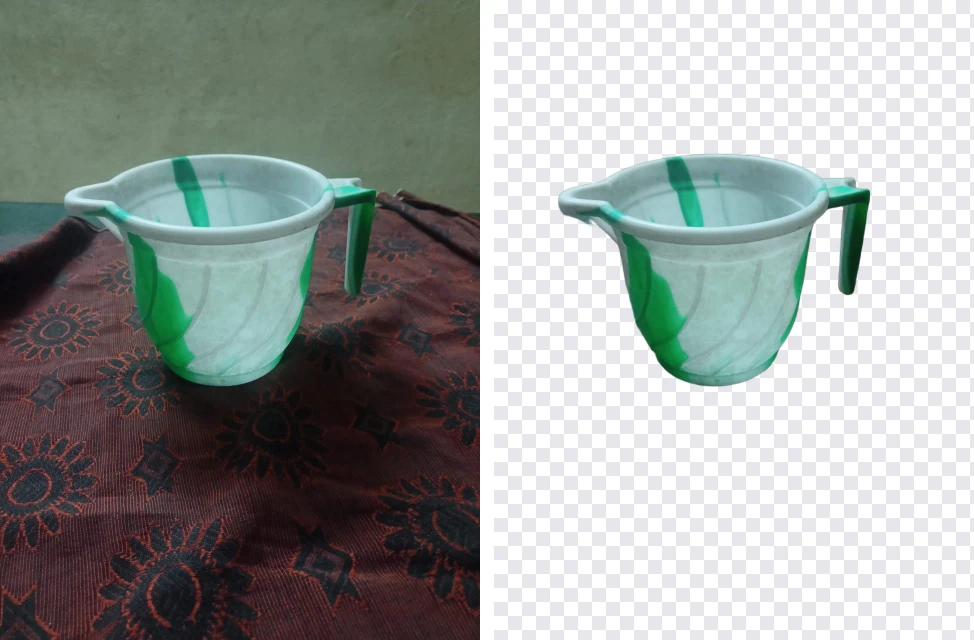
That covers most people, products and animals. The rest of this guide is about the cases where it doesn't go so smoothly, and about the part that trips up even experienced users: keeping the transparency intact once you have it.
What "transparent" means inside a file
A normal photo stores three values for each pixel: red, green and blue. A transparent image stores a fourth, called alpha, which says how see-through that pixel is, from fully solid to fully invisible. The chequerboard you see in editors isn't part of the image; it's just how programs draw "nothing here".
Alpha has degrees. A good cut-out isn't a hard stencil: the pixels along hair, fur and soft edges are partly transparent, so the subject blends into whatever you place it on. That's why a cut-out from a decent tool looks natural on a new background, while a hard-edged one looks pasted on.
Only some formats can store alpha:
- PNG: full, smooth transparency. The standard choice, and what the background remover gives you.
- WebP: full transparency as well, in a much smaller file. Supported by every current browser and most modern apps.
- GIF: each pixel is either fully visible or fully invisible, nothing in between, so edges around hair or curves look jagged.
- SVG: a vector format for logos and icons; transparent by nature.
- JPG: no transparency at all. Save a cut-out as JPG and the transparent area becomes a solid colour, usually white or black.
Watch out for fake transparent PNGs
If you've searched for "logo transparent PNG" and downloaded something that showed a chequerboard, then dropped it into a slide and the chequerboard came with it, you've met a fake. Some sites show preview images with the grey-and-white squares painted into the pixels. The file is a normal opaque image that happens to look transparent.
Two ways to tell: in a real transparent image, the chequerboard squares stay the same size on screen when you zoom in, because the editor is drawing them. In a fake, the squares grow with the picture. And if you drag the file into a browser tab, a real one shows the tab's plain background behind the subject, while a fake still shows squares.
Renaming or re-saving a fake won't make it transparent; the squares are part of the picture. You need a real cut-out: run it through the background remover like any other image, or better, get the original file from whoever owns the logo.
Logos and signatures: where the AI struggles
AI background removers are trained mostly on photos of people, products and animals. To see how one copes with flat graphics, we drew three test images and ran them through ours, then counted exactly which pixels came out transparent.
- A logo on pure white (a blue ring with the word ACME). All of the blue was kept and almost all of the white around it removed. But the white hole in the middle of the ring stayed white. The model saw the ring as one solid object and kept everything inside it.
- A signature on pure white with a separate underline. The connected main stroke came out cleanly, but the underline disappeared completely. In numbers, only 68% of the ink survived.
- The same signature on photographed paper, with the usual cream-to-grey shading. The AI behaved exactly as on white: the paper was removed, the underline went with it.
We also tried the classic alternative, a tool that removes one exact colour (how "Set Transparent Color" in PowerPoint works). On the clean logo it removed 99.6% of the white, including the hole in the ring, and kept every bit of blue. On the photographed paper it removed under 3% of the background, because real paper isn't one colour.
So the right method depends on what you have:
- A digital logo or graphic on pure white: use a one-colour tool. In PowerPoint or Word, select the picture, then Picture Format > Color > Set Transparent Color, and click the white. On a Mac, Preview's Instant Alpha (in the Markup toolbar) does the same. Then save or export as PNG. Better still, ask whoever made the logo for the original SVG or PNG file.
- A signature or logo photographed on paper: photograph it in even daylight on bright white paper, filling the frame. Then try the background remover and check carefully that dots, underlines and small separate marks survived. If they didn't, use a tool with a tolerance setting, such as GIMP's free Colors > Color to Alpha, which copes with uneven paper.
- A product, person or pet: the AI is the right tool.
Getting a clean cut-out from a photo
The AI decides what the main subject is and removes everything else. It does well when the subject stands out. In our tests, a mug, a dog outdoors, a smiling fishmonger in a cap and a portrait with loose hair all came out cleanly. The one failure was instructive: a grey tabby cat on grey soil in front of bright green leaves. The model kept the leaves and removed the cat, because the leaves were the most eye-catching thing in the frame.
The fix was simple: we cropped the photo to the cat in the image cropper and ran it again, and the cat came out well. If the AI keeps the wrong thing, crop closer to what you want before trying again. Other things that help:
- A subject that contrasts with its background in brightness or colour.
- The whole subject in the frame. A product cut off at the edge gets a flat, straight edge in the cut-out.
- Reasonable resolution. A tiny image gives the model little to work with around fine edges like hair.
Glass, smoke, veils and other see-through objects are hard for every automatic tool, because the background shows through the subject itself.
Keeping the transparency once you have it
Most "the transparency disappeared" problems happen after the cut-out, somewhere along the way:
- Saving or exporting as JPG. Any program that saves as JPG fills the transparent area. Keep PNG or WebP until the very last step.
- Sending through a chat app as a photo. Many messaging apps convert photos to JPG to save data. Send the file as a document or file attachment instead.
- Uploading to a site that converts images. Some marketplaces and forms convert everything to JPG. If you know that will happen, choose the background yourself in the remover (White, or Color with the exact colour you need) instead of leaving it to the site.
- A viewer that doesn't show transparency. Windows Photos and some email clients draw transparent areas as black or white. The file may be fine. Check by dragging it into a browser tab or placing it over a coloured shape in a slide.
Transparency in slides and documents
A transparent PNG drops straight into PowerPoint, Keynote, Google Slides, Word and Google Docs. In Word, set the picture's layout to "In front of text" if you want to move it freely over other content.
One thing confuses a lot of people here. The "Transparency" slider in Word, PowerPoint and Google Slides doesn't remove a background. It makes the whole picture see-through, subject included, which is useful for a faded watermark but not for a cut-out. To remove the background, you need a cut-out (from the background remover) or the Set Transparent Color tool for flat graphics.
Making the file smaller without losing transparency
Transparent PNGs of photos are big. Our 3746 × 3746 portrait came out of the background remover as a 2,534 KB PNG. That's often too big for an upload form, and slow on a website.
We ran that file through the image compressor at quality 80 to see what happens to the transparency:
| Saved as | Size | File size | Transparency |
|---|---|---|---|
| PNG (original cut-out) | 3746 × 3746 | 2,534 KB | Yes |
| WebP | 3746 × 3746 | 220 KB | Yes |
| PNG | 1200 × 1200 | 482 KB | Yes |
| WebP | 1200 × 1200 | 44 KB | Yes |
| JPG | 1200 × 1200 | 34 KB | No, filled with white |
WebP kept the transparency at about a tenth of the PNG's size, at the same dimensions. If the place you're using the image accepts WebP (websites, most design tools, modern slide apps), that's the format to use. If it insists on PNG, reduce the width to what you actually need; 1200 pixels is plenty for a slide or a web page. And if you don't need transparency at all, a white or coloured background saved as JPG is the smallest of all.
When not to make the background transparent
- Passport and ID photos. Many offices reject photos with digitally replaced backgrounds. Take the photo against a plain light wall instead; the passport photo size guide explains what to check.
- Marketplace product photos. Most stores want pure white, not transparency. The guide to white background product photos covers that.
- Images headed for print. Ask the printer. Many want the final background colour built in, or a PDF.
Frequently asked questions
How do I make the background of a picture transparent for free?
Open the background remover, add the photo and leave the background on Transparent. The AI cuts out the subject and you download a PNG with a transparent background. It runs in your browser, so nothing is uploaded and there's no signup or watermark.
Why does my transparent PNG show a black or white background?
Usually the viewer, not the file. Windows Photos and many chat and email apps draw transparent areas as black or white. If the background is solid everywhere, including in a browser tab, the file was converted to JPG somewhere, and JPG can't store transparency.
Which formats support a transparent background?
PNG and WebP keep full, smooth transparency. GIF only has on/off transparency, so edges look jagged. SVG (for vector graphics) supports it too. JPG doesn't support transparency at all.
How do I remove a white background from a logo?
If the logo is a clean digital file on pure white, a tool that removes one colour works best, such as Set Transparent Color in PowerPoint or Instant Alpha in Preview on a Mac. In our test the AI remover kept the white centre of a ring-shaped logo instead of removing it.
Can I make a signature background transparent?
Yes, but check the result. In our test the AI kept the main stroke of a signature perfectly and dropped a separate underline completely. For signatures, make sure every mark survived, and use a tool with a tolerance setting if you photographed the signature on paper.
How do I make a transparent PNG smaller?
Save it as WebP, which also keeps transparency. Our 2,534 KB transparent PNG became 220 KB as WebP at the same size, and 44 KB at 1200 pixels wide, with the transparent area intact.