
Crop vs Resize: How to Change an Image's Size Without Stretching It
Most "my photo looks weird" problems come down to mixing up two different jobs. Cropping cuts away part of a picture. Resizing makes the whole picture bigger or smaller. Both change the size, but only one of them can change the shape, and when an app tries to change the shape by resizing, faces get wider, circles turn into ovals and buildings lean.
This article explains the difference in plain terms, shows exactly how much distortion you get when a photo is forced into the wrong shape, and walks through the two-step method that gets any exact size, such as 1080 × 1350 or 1280 × 720, without stretching anything. All the numbers below are simple pixel arithmetic you can check yourself, using a typical 12-megapixel phone photo of 4000 × 3000 pixels.
Crop vs resize: the short version
- Cropping removes pixels from the edges. The pixels you keep are untouched, so a crop never makes a photo blurry. It's the only way to change the shape (the aspect ratio) without distortion.
- Resizing (also called scaling) recalculates every pixel to make the picture bigger or smaller. Done with the width and height locked together, the shape stays the same and nothing looks stretched. Making a photo smaller is safe; making it bigger can't add real detail on its own.
- Stretching is resizing the width and height by different amounts. It's what happens when you type a new width and height that don't match the photo's shape, or when a website forces an image into a box of the wrong proportions.
So the rule is simple. To change the shape, crop. To change the number of pixels, resize. To get both, crop first and resize second.
Why does my image look stretched?
Every photo has an aspect ratio, its width divided by its height. Most phone cameras shoot 4:3 (4000 × 3000), many cameras shoot 3:2, and screens and videos are usually 16:9. When a picture is squeezed into a box with a different ratio, one direction is scaled more than the other. The size of the distortion is just the two ratios divided by each other:
| A 4:3 photo forced into | What happens |
|---|---|
| 1:1 square (1080 × 1080) | Everything becomes 25% narrower |
| 4:5 portrait (1080 × 1350) | Everything becomes 40% narrower |
| 16:9 widescreen (1280 × 720) | Everything becomes 33% wider |
| 9:16 story (1080 × 1920) | Everything becomes 58% narrower |
Even the mildest case, a square, makes a round face noticeably thin, and people spot distorted faces long before they notice anything else. The usual causes are an image editor with the "keep proportions" lock turned off, an upload form that resizes to fixed dimensions, or a website template that sets both the width and height of an image. If the photo looks fine on your device and stretched only on one site, the site is doing the stretching, and the fix is to upload a file that already has the shape the site wants.
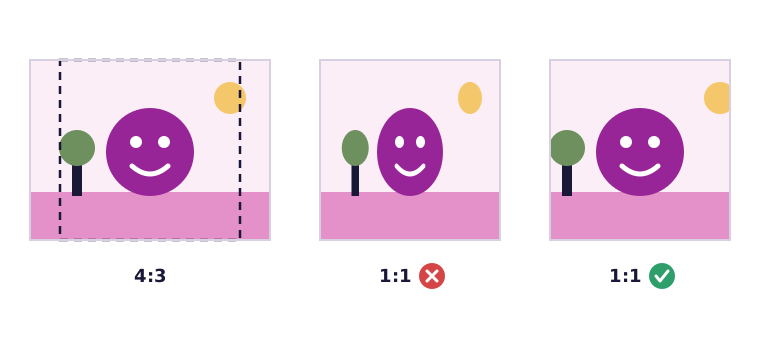
How much of your photo each shape keeps
Cropping avoids distortion, but it costs something: whatever falls outside the frame. It helps to know in advance how much you'll lose, because that tells you whether the subject will fit. These are the largest crops you can take from a 4000 × 3000 phone photo in each common shape:
| Shape | Largest crop | Share of the photo kept |
|---|---|---|
| 3:2 photo print | 4000 × 2667 | 89% |
| 1:1 square | 3000 × 3000 | 75% |
| 16:9 widescreen | 4000 × 2250 | 75% |
| 1.91:1 link preview | 4000 × 2094 | 70% |
| 4:5 portrait | 2400 × 3000 | 60% |
| 35 × 45 passport | 2333 × 3000 | 58% |
| 9:16 story | 1688 × 3000 | 42% |
Two things follow from this. First, the further the new shape is from the original, the more you lose: a 9:16 story crop throws away more than half of a horizontal photo, so if you know a picture is for a story, it's worth turning the phone upright when you take it. Second, even the largest crops are still far bigger than most screens need. A 3000 × 3000 square is almost three times wider than the 1080 pixels Instagram displays, which is why you'll usually resize after cropping.
How to crop an image to a specific size, step by step
Say you need exactly 1080 × 1350 for a 4:5 post. Getting there cleanly is two steps: crop to the shape, then scale to the size. With our image cropper you can do both at once:
- Open the photo in the cropper. It runs in your browser, so the file isn't uploaded anywhere.
- Type the size you need into the Exact size boxes, here 1080 and 1350, and press Set. The crop box locks to that shape, so it can't stretch the photo.
- Frame the crop. Move the box over the part you want and resize it from the corners. The shape stays locked while you do it. Zoom in if you need to frame precisely.
- Check the Selection readout under the photo. It shows how many original pixels you've selected. For a sharp result it should be at least as big as the size you typed, for example 1080 × 1350 or more.
- Crop and download. The file comes out at exactly 1080 × 1350 pixels, whatever the size of your selection.
If you only need the shape and not an exact size, pick a preset such as 1:1, 4:5 or 16:9, or type a custom ratio. The cropper then saves the selection at its full original resolution, with no scaling at all. That's the best choice when you'd rather let the website do the final resize, or when you plan to print.
In any other editor the same method works: turn on the ratio lock (often a chain or padlock icon), crop to the ratio, then resize with "keep proportions" switched on. As long as the shape is fixed before you resize, nothing can stretch.
When the photo is smaller than the size you need
Step 4 above matters more than it looks. If your selection is 600 × 750 pixels and you ask for 1080 × 1350, the cropper still gives you exactly 1080 × 1350, because that's what you typed. But it has to enlarge the selection by 80 percent to get there, and an ordinary enlargement only spreads the existing pixels over a bigger area. The shape is correct, but the picture looks soft.
You have three better options. Use a larger part of the photo if the framing allows it. Find a bigger original, for example the full photo instead of a copy saved from a chat app, which often shrinks pictures. Or crop to the shape with a preset, enlarge that crop 2x or 4x with an AI image upscaler, which adds believable detail along edges instead of just spreading the pixels, and then set the exact size on the bigger result. Our guide on how to increase image resolution explains what upscaling can and can't recover, and how far you can push it.
How to resize an image without losing quality
Making a picture smaller is the safe direction. Detail is combined, not invented, so a good downscale looks just as sharp at its new size. A few details still make a difference:
- Keep the proportions locked. In our image compressor you only enter a width, and the height follows automatically, so there's no way to stretch by accident. It never enlarges: a width bigger than the original is ignored.
- Resize once, from the original. Shrinking a photo that has already been shrunk and compressed several times adds a little damage each time. Keep the original and make each size from it.
- Choose the format for the content. JPG or WebP for photos, PNG or WebP for screenshots, logos and anything with transparency. Each JPG save loses a little, so do your cropping and resizing before the final save, not after it.
- Size for where it's going. Around 1080 to 1280 pixels wide is plenty for social posts, chat and email. The full size is only needed for printing.
Smaller dimensions also mean a smaller file. If you need to get under a limit in KB, our article on how to reduce image file size without losing quality shows what each step saves.
Can you change the aspect ratio without cropping?
Sometimes the subject fills the whole frame and you can't afford to cut anything. There are honest ways around that, and one dishonest one.
- Add borders. Placing the whole photo on a background of the new shape, with bands at the sides or top and bottom, changes the ratio without losing or distorting anything. Many phone photo editors offer this as a "fit" or "border" option.
- Extend the background. Some editors can fill in extra sky, wall or floor at the edges with AI. It can look convincing on simple backgrounds, but the new area is invented, so don't use it for documents, products or anything that has to be accurate.
- Stretch it. This is the dishonest option. A few percent may go unnoticed on a landscape, but on people, logos and products it looks wrong immediately.
Our tools don't add borders or extend backgrounds, so for those you'll need a separate editor. For everything else, a careful crop is almost always the cleaner result.
Which one to use: a quick guide
- The photo is the wrong shape: crop. Use a preset or type the ratio the platform asks for.
- The photo is the right shape but too big: resize, with proportions locked.
- You need an exact size like 1280 × 720: crop and resize together with Exact size in the cropper. Our YouTube thumbnail size and Instagram image size guides list the sizes each platform uses.
- A form wants specific proportions, like a passport photo: crop to the ratio first, then check the pixel and KB limits. The passport photo size guide has the numbers by country.
- The photo is too small for the size you need: crop to the shape, upscale the crop, then set the exact size.
Once you think of cropping as changing the shape and resizing as changing the number of pixels, stretched photos stop being a mystery. Fix the shape first, and the size can never distort it.
Frequently asked questions
What is the difference between cropping and resizing?
Cropping cuts pixels away from the edges and can change the shape without distortion. Resizing recalculates every pixel to make the whole picture bigger or smaller, and keeps the shape only when width and height stay locked together.
Does cropping reduce image quality?
No. The pixels you keep are untouched, so a crop never blurs a photo. Only the final save can add a little loss, and at the quality our cropper uses for JPG and WebP it isn't visible.
How do I resize an image without stretching it?
Lock the proportions so the height follows the width. If you need a different shape, crop to that shape first and then resize, or use Exact size in the cropper, which does both in one step.
Keep reading
Free image tools, right in your browser
Upscale, remove backgrounds, strip metadata, crop, compress or make a QR code. No upload, no signup, no watermark.