
Blurry Product Photos Can Cost You a Sale: Here's What Fixes Them
A product photo that looks fine on your phone and soft on the shop page is one of the most common complaints from people selling online. It matters, because buyers zoom: a blurry close-up makes a good product look cheap, and it raises doubts about condition and quality that a clear photo would have answered. The good news is that "blurry" usually has one of five causes, each easy to identify, and most are fixable for free. The trick is to fix the right one, because the fix for one cause does nothing for another.
Diagnose first: a one-minute check
Open the original photo file (not the one on the shop page) on a computer and zoom to 100%. Then ask three questions:
- How many pixels is it? On Windows, right-click the file, Properties, Details. On a Mac, File > Get Info. If it's under about 1000 pixels on the long side, the photo is simply too small for a zoomable product page.
- Do you see small square blocks or smudgy halos around edges, especially in flat areas like a white background? That's compression damage.
- Are edges doubled or smeared in one direction, or is everything uniformly soft even at a small zoom? That's motion blur or missed focus.
If the original looks sharp at 100% and only the shop page looks soft, the problem is in how the shop displays or re-compresses it. Each of these leads to a different cause below.
Cause 1: the photo is too small
This is the most common one, especially with supplier photos, which often arrive at 500 or 600 pixels. Marketplaces enable zoom and show images large on desktop screens; a small image is stretched to fill the space, and stretched pixels look soft.
The numbers to aim for: Amazon's guidance points to at least 1000 pixels on the longest side for zoom, eBay recommends 1600, and Etsy recommends at least 2000 pixels on the shortest side. Shopify themes commonly work best with square images around 2048 × 2048.
The fix: first, ask the supplier or photographer for the full-size originals; they almost always exist. If they don't, enlarge the photo with the image upscaler. A 600-pixel photo at 2x becomes 1200, enough for most zoom; at 4x it becomes 2400, enough for Etsy's recommendation. Do it on a computer, where the AI model runs. Leave the enhancement sliders at zero for the first try.
What to expect: AI upscaling rebuilds edges well. In our tests the hard edges of a product (a mug's rim and handle, a shoe's laces and eyelets) came out crisp, while fine random texture such as wood grain was a little smoother than in a real high-resolution photo. For a listing, that's usually a clear improvement over a stretched small image.
Cause 2: the photo was compressed too hard
Photos sent through messaging apps, downloaded from social media or saved at low quality pick up compression blocks and halos. At thumbnail size you don't notice; when a buyer zooms, you do.
The fix: go back to the original file. Photos shared through chat apps the normal way are usually re-compressed; sending them as a document or file keeps the original. If no clean original exists, upscaling helps a little (try Denoise Level 10 to 20 in the upscaler to smooth the blocks), but it can't fully undo heavy compression, because the blocks get enlarged along with everything else.
And when you save your own edits, don't compress again and again. Edit from the original, and compress once at the end. The image compressor lets you set the quality yourself; for product photos, 85 to 92% keeps edges clean while keeping files small.
Cause 3: motion blur or missed focus
If the original is soft at 100% with smeared or doubled edges, the camera moved or focused on the wrong thing. This is the one cause no software really fixes. Upscalers and sharpening make the blur bigger or add halos to it; they don't recover detail that was never captured.
The fix is a re-shoot, and it's quick once you know what causes it:
- More light. In dim rooms, phones use slow shutter speeds, and the slightest movement blurs. Shoot by a window in daylight.
- Brace the phone on a stack of books, or use a cheap tripod and the self-timer, so pressing the button doesn't shake it.
- Tap to focus on the product, not the background, and don't zoom digitally: move closer instead.
- Use the normal photo mode. Portrait modes with background blur can soften the edges of the product itself.
Cause 4: the product is small in the frame
A sharp, large photo can still look soft on a product page if the product only fills a small part of it. When the shop shows the image as a square, the product is tiny, and when buyers zoom, they're zooming into a small number of pixels that actually show the product.
We saw this in our own tests: in one product photo, a coffee cup took up only 42% of the width and 58% of the height of a 3940 × 2686 photo. Cropping a square of about 1930 pixels around it made the cup fill roughly 85% of the frame, and at 1930 pixels the crop was still far above the 1000-pixel zoom threshold.
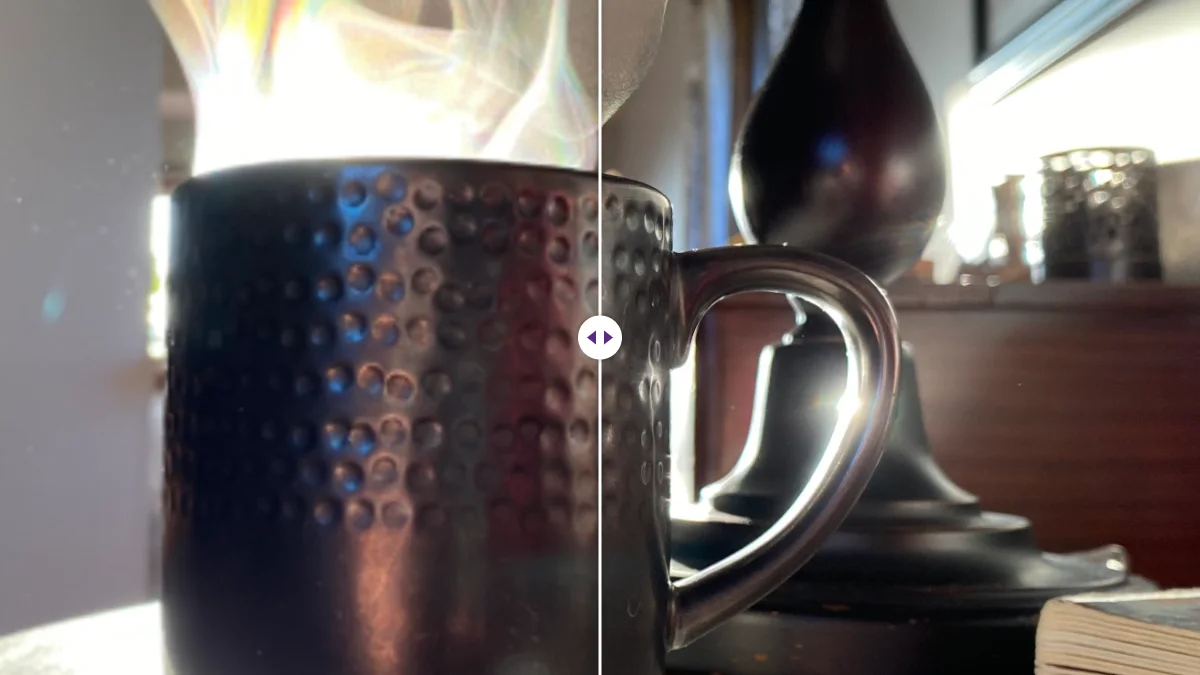
The fix: crop tighter in the image cropper. Use the Square 1:1 preset for shops that show square images, and watch the "Selection" readout to stay above the shop's minimum. If the tight crop ends up too small, upscale the crop rather than the whole photo.
Cause 5: the shop re-compresses or resizes
If your original is sharp and well framed and the listing still looks soft, the platform is resizing or re-compressing it. You can't switch that off, but you can give it less to do:
- Upload at the size the platform recommends, not much larger. A very large image gets shrunk by the platform's resizer, which may not be as careful as yours.
- Use JPG at high quality for photos. A PNG photo is enormous (in our tests a 3940 × 2686 product photo on white was 3,059 KB as PNG and 597 KB as JPG) and some platforms convert it anyway.
- Avoid heavy sharpening before upload. Platform compression exaggerates sharpening halos.
- Keep the file under the upload limit yourself, so the platform doesn't have to squeeze it harder.
A complete fix for a typical supplier photo
Here's how we'd handle the most common case: a 600 × 600 supplier photo on a grey background that needs to be zoomable on pure white.
- Upscale 2x (to 1200 × 1200) or 4x for Etsy, on a computer, sliders at zero.
- Remove the background with the background remover and choose White. Upscaling before removing the background gave us crisper edges when we tested both orders.
- Crop so the product fills about 85% of a square.
- Save as JPG, quality 85 to 92.
- Check at 100% on the parts buyers care about: labels, stitching, edges, any wear.
The guide to white background product photos covers the marketplace rules in more detail, including why a photo taken on white paper usually isn't white enough.
A shooting setup that avoids most of these problems
If you photograph your own products, a small amount of setup prevents causes 1, 3 and 4 entirely:
- A table next to a large window, out of direct sun. Daylight from the side gives shape without harsh shadows.
- A sheet of white or light grey card curved up behind the product, so there's no visible horizon line. A darker card for white products, so the edges stay visible; you can put them on white later.
- The phone on a small tripod or propped on books, at the product's height, using the timer so the press doesn't shake it.
- Full resolution, normal photo mode, no zoom: move the phone closer instead.
- The product filling most of the frame, with a little margin on every side for cropping.
Take a few shots of each angle and pick the sharpest at 100% on a computer, not on the phone screen, which makes almost everything look sharp. It takes ten minutes to set up and turns most "blurry listing" problems into a non-issue.
Then keep the originals. If a shop later wants larger images, or you change platforms, starting from the original full-resolution photo always beats enlarging the copy you uploaded.
Finally, check how the listing looks on a phone as well as a computer. Most buyers browse on phones, where a slightly soft image often passes, while desktop zoom is where problems show. Fix for the desktop zoom and the phone view takes care of itself.
One honest caveat
Enhancing a photo is fine; misrepresenting the product isn't. Don't sharpen away scratches, change colours or hide defects. A buyer who receives something that doesn't match the photos returns it, and the clear photo that sold it becomes the reason for a bad review. The goal is a photo that shows the product as it is, sharply.
Frequently asked questions
Why do my product photos look sharp on my phone but blurry in my shop?
Usually one of four things: the photo is too small for zoom, it was compressed too hard, the product is small in the frame, or the platform re-compresses it. Open the original at 100% on a computer to tell which.
How many pixels should product photos have?
Amazon's guidance points to at least 1000 pixels on the longest side for zoom, eBay recommends 1600, and Etsy recommends at least 2000 pixels on the shortest side.
Can an upscaler fix an out-of-focus product photo?
No. Motion blur and missed focus are missing information. Re-shoot with more light, a steady phone and focus on the product itself.
Keep reading
Free image tools, right in your browser
Upscale, remove backgrounds, strip metadata, crop, compress or make a QR code. No upload, no signup, no watermark.