
How to Reduce Image File Size Without Losing Quality: What We Measured
"Without losing quality" is the most common thing people add when they search for how to make a photo smaller, and it deserves an honest answer. Almost every way of shrinking a photo throws some information away. The real question is whether you can see what was thrown away. Done well, a photo can lose 90 percent of its file size and still look the same on a screen. Done badly, it gets blocky edges and smeared colours long before it gets small enough.
To find out what actually matters, we took one ordinary 8-megapixel phone photo of a cat (3264 × 2448 pixels, 4.15 MB as a JPG) and compressed it dozens of ways with our image compressor, measuring the file size and, for the quality steps, how far each result drifted from the original. Here is what we found, in order of how much each step helps.
What "without losing quality" really means
There are two kinds of compression. Lossless compression, used by PNG, packs the same pixels more tightly and gives back exactly the original. Lossy compression, used by JPG and most WebP files, throws away detail your eyes are least likely to notice, such as tiny colour variations inside a smooth area. Lossless keeps everything but rarely saves much on photos; lossy can save a lot, and at sensible settings the loss is invisible.
There's also one truly lossless saving: removing hidden metadata. Our test photo carried a 64 KB block of camera data, including its GPS position. Removing it with the metadata remover changes no pixels at all. On a 4 MB photo that's only about 2 percent, though, so for real savings you need the steps below.
Why is my image file so big?
A large file almost always comes down to one of four things, and knowing which one you have tells you which step below will help most:
- Too many pixels. Phone cameras save at full resolution, usually 12 megapixels or more, even when the picture will only ever be seen on a screen a few hundred pixels wide. Our 8-megapixel test photo was 4.15 MB straight from the camera.
- Saved at maximum quality. Editing apps and some phones save at 95 to 100 percent quality, which keeps detail no one can see and makes the file far bigger than it needs to be.
- The wrong format. A photo saved as PNG, or a screenshot of a photo, can be ten or twenty times bigger than the same picture as JPG or WebP.
- Hidden data. Camera information, a built-in preview image and editing history can add tens of kilobytes. It rarely matters much on its own, but it's the one saving that costs nothing at all.
Step 1: Make the picture the right size first
This is the step that does most of the work, and the one people skip. File size follows the number of pixels. A phone photo is usually 3000 to 4000 pixels wide, far more than a web page, an email or a form will ever show. Here is the same photo saved as JPG at 80 percent quality, at different widths:
| Width | File size (JPG, 80%) |
|---|---|
| 3264 px (original size) | 1.33 MB |
| 2048 px | 620 KB |
| 1920 px | 554 KB |
| 1280 px | 280 KB |
| 1080 px | 217 KB |
At 1080 pixels wide the file is 95 percent smaller than the original, and on a phone screen it's hard to tell the two apart, because the phone was never going to show more than about that many pixels anyway. Choose the width from where the picture is going: around 1080 to 1280 pixels for email, chat and most social posts, 1600 to 2000 for a large image on a website, and the full size only for printing.
Step 2: Use a quality between 70 and 85 percent
The quality slider is where people expect the magic to happen, and it does help, but less than resizing and with a clear point of diminishing returns. Here is the full-size photo at different JPG qualities:
| Quality | JPG size | How close to the original |
|---|---|---|
| 100% | 5.76 MB | Bigger than the 4.15 MB original |
| 90% | 2.02 MB | No visible difference |
| 80% | 1.33 MB | No visible difference at normal size |
| 70% | 1.05 MB | Fine for screens |
| 60% | 899 KB | Slight softening in fine detail |
| 10% | 264 KB | Blocky and smeared |
Two things stand out. First, 100 percent is not "the original": it made the file bigger, because the photo was re-encoded with almost nothing thrown away. Second, the big saving is between 100 and 80. On a 1024-pixel crop we measured how far each version drifted from the original, using a standard score where higher means closer (PSNR, in decibels). It went from 42.2 at 95 percent to 34.5 at 80 percent and 32.1 at 60 percent, while the file kept shrinking more slowly. Below about 60 percent you give up visible quality for small savings, and even 10 percent couldn't take this 8-megapixel photo under 100 KB. Only resizing does that.
Our rule: 80 to 85 percent for photos you care about, 70 to 75 when the size really matters, and resize rather than go below 60.
Step 3: Pick the right format: JPG, WebP or PNG
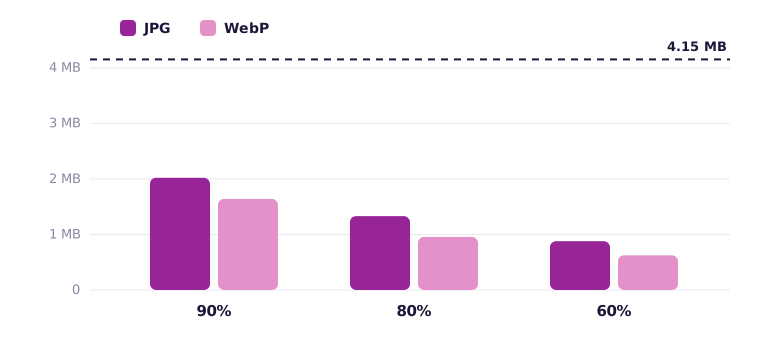
WebP is a newer format that every current browser supports, and it was consistently smaller at the same quality. At 80 percent the full-size photo was 1.33 MB as JPG and 978 KB as WebP, about a quarter smaller. Measured for closeness to the original, WebP at 220 KB scored 36.4 while JPG at a similar 206 KB scored 33.1, so WebP is not just smaller but better at the same size.
- WebP for websites, blogs and anywhere you control where the image is shown. Smallest files for the same look, and it keeps transparency.
- JPG for photos you send to other people, upload to forms or print. It opens everywhere, including old software and strict upload forms that don't accept WebP.
- PNG for screenshots, logos and graphics with flat colours and sharp text. For photos it's a trap: an enlarged photo of a cat on a wall was 6.85 MB as PNG and 337 KB as WebP, with no difference you could see.
Even for screenshots PNG isn't automatically smallest. A 1080 × 600 screenshot of plain text was 77 KB as PNG, 58 KB as JPG and 34 KB as WebP. PNG keeps the letters perfectly crisp, which is worth it for small text, but if the size limit is tight, WebP at high quality is a good compromise.
Don't compress the same file twice
Every lossy save throws away a little more. If a photo has already been compressed, by a phone app, a messenger or a website, compressing it again often saves almost nothing and only adds damage. In one test a 117 KB product photo saved again as JPG at 80 percent came out at 119.8 KB: slightly bigger, and slightly worse. Always start from the original file, the one straight from the camera or phone, not a copy saved from a chat or downloaded from social media.
Hitting an exact limit: 100 KB, 50 KB or 20 KB
Job portals, exam forms and visa applications often set a hard limit. Guessing a quality and checking the size is slow, so the compressor's Target Size mode does it for you: type the limit and it finds the highest quality that fits, and only if 60 percent quality is still too big does it reduce the dimensions. On our test photo it produced 99.2 KB at 869 × 652 pixels for a 100 KB target, 49.5 KB at 592 × 443 for 50 KB, and 19.8 KB at 365 × 274 for 20 KB. Each result is a normal, clean photo at a smaller size, which is what those forms actually want.
One detail catches people out: the tool counts 1 KB as 1,024 bytes, and some forms count 1,000. A file shown as 99.5 KB can be just over a strict "100 KB" limit. If a form rejects a file that should fit, type 97 instead of 100. Our guides for 100 KB, 50 KB and 20 KB cover the common forms in detail.
What compression can't do
- It can't make a blurry photo sharp. Compression only removes information. If a photo is soft or too small to begin with, the image upscaler is the right tool, and you can compress the result afterwards.
- It can't save tiny text. A screenshot full of small text needs its pixels. Shrinking it a lot to reach a limit makes the text unreadable, so crop to the part that matters first.
- It can't keep transparency in JPG. JPG has no transparent pixels, so a logo or cut-out saved as JPG gets a solid background. Use WebP or PNG for those.
Quick recipes
- Email or chat: 1280 pixels wide, JPG at 80 percent. A typical phone photo ends up around 300 KB.
- Your own website or blog: 1600 to 2000 pixels wide for large images, WebP at 75 to 80 percent.
- Upload form with a limit: Target Size mode with the limit (or a few KB under it), JPG unless the form says otherwise.
- Social media: most networks re-compress what you upload, so give them a clean file at the size they display, such as 1080 pixels wide, at 85 to 90 percent, rather than an already heavily compressed one.
- Printing: don't compress. Keep the full size and a high quality, and check the print shop's file limit first.
The order matters more than any single setting: resize first, then choose the format, then the quality. Done in that order, you'll rarely need to go anywhere near the settings that start to show.
Frequently asked questions
Can you compress an image without losing any quality?
Only with lossless methods, such as saving as PNG or removing metadata. They change no pixels but rarely save much on photos. Lossy compression (JPG, WebP) saves far more, and at 80 to 85 percent quality the difference isn't visible on screen.
What is the best JPG quality setting?
80 to 85 percent for photos you care about. In our test, 80 percent cut an 8-megapixel photo from 4.15 MB to 1.33 MB with no visible difference, while 100 percent made the file bigger than the original.
Is WebP better than JPG for file size?
Yes, for the same look. At 80 percent quality our test photo was 978 KB as WebP and 1.33 MB as JPG. Use JPG when a form or older software doesn't accept WebP.
Keep reading
Free image tools, right in your browser
Upscale, remove backgrounds, strip metadata, crop, compress or make a QR code. No upload, no signup, no watermark.