
What Does the "AI" in AI Upscaler Actually Mean?
"AI" is printed on so many products now that it's fair to ask what it means on an image upscaler. Here it means something specific: the tool contains a model, a large set of numbers produced by training, that has learned what fine detail usually looks like and uses that knowledge to fill in pixels a normal resize can only blur. That's a genuine difference you can see and measure. It also comes with a catch that's worth understanding before you rely on the result. This post explains both in plain language.
The short version
A normal resize treats a photo as a grid of numbers and smooths between them. An AI upscaler recognises patterns in those numbers (an edge, a strand of hair, the curve of a letter) and draws what such patterns typically look like at higher resolution. The first can only make an image bigger. The second can make it bigger and sharper, because it brings knowledge from outside your photo.
An analogy
Imagine asking two people to redraw a small, blurry picture at four times the size. The first is very careful but has never seen a photograph: they enlarge each blob of colour exactly as it is, smoothing the transitions. The result is big and faithful and soft. The second has looked at millions of photos. When they see a dark, thin, slightly blurred line near an eye, they know it's almost certainly an eyelash, and they draw a crisp eyelash. When they see a soft gradient between two colours at the edge of an object, they draw a clean boundary.
The second artist's version looks far better. It's also partly their interpretation: where the blur was too heavy to tell what was there, they drew what's usually there. That's the AI upscaler in a nutshell, including its catch.
What the model actually learned
The model inside an AI upscaler is trained by showing it pairs of images: a sharp, high-resolution photo and a shrunk, degraded copy of the same photo. Its task is to turn the small copy back into the original. At first its attempts are poor. After each attempt, its internal numbers are adjusted slightly to do better. Repeat that millions of times across a huge variety of photos, and the numbers end up encoding a kind of visual experience: how edges continue, what textures look like up close, how a blurred step between colours usually resolves.
Crucially, the model doesn't store the training photos, and it doesn't look anything up. It has learned general patterns, the way you've learned what a cat looks like without memorising specific cats. When you give it your photo, it applies those patterns to it.
The model in our image upscaler is a compact one, small enough to download into a browser and run on your own computer. Our post on how AI image upscaling works goes into the technical side: training, tiling, and why browser models are smaller than desktop ones.
Why a filter can't do the same
People sometimes assume an AI upscaler is just a resize followed by heavy sharpening. You can test that idea, and it doesn't hold. Sharpening increases contrast along existing edges; it can't draw an edge that isn't there, and on a blurry enlargement it produces harsh halos rather than detail.
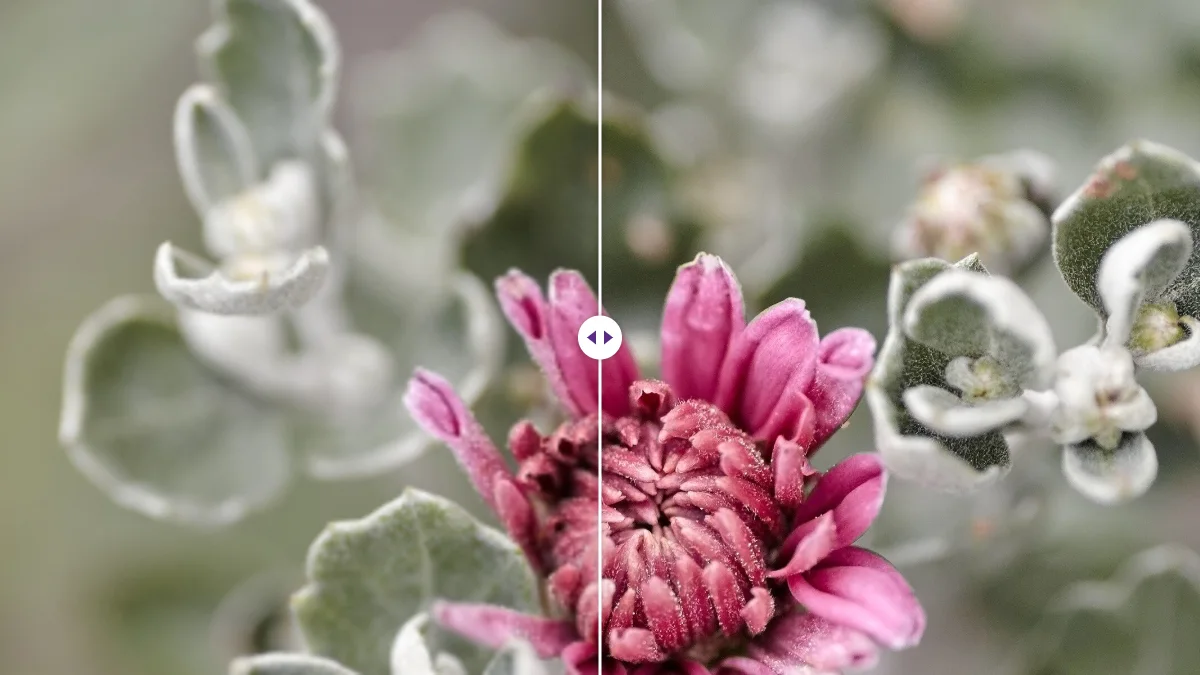
We compared the two directly. We reduced a portrait to 480 × 480 pixels and enlarged it 4x with the browser's own high-quality resize and with our AI model, then measured edge detail on the face. The resize scored 3.0; the AI version 34.7. That number measures edge contrast, not truth: it can't tell a recovered eyelash from a convincingly drawn one. More telling than the number: the AI version had individual eyelashes and clean edges to the teeth, things no sharpening filter can conjure from a soft blur.
The catch: where the AI is guessing
Because the model draws what's usually there, it will sometimes draw something that isn't. In our portrait test the eyes and hair came out convincingly, but the skin came out smoother than in a real high-resolution photo. Fine, random texture like pores was replaced with something plausible but simpler. That's typical, and on a family photo it's often welcome.
It matters more in other situations:
- Very small faces. A face 20 pixels wide doesn't contain enough information to determine what the person looks like. The model will produce a face, not necessarily theirs.
- Text and numbers that are too small to read in the original. The model may produce crisp characters that are the wrong characters.
- Evidence of any kind. An upscaled image is a plausible reconstruction, not a recording. Don't use one to read a number plate, identify someone, or prove a detail.
A useful rule: zoom the original to 100%. If you can make out the detail you care about there, even roughly, the upscaler will render it well. If you can't, anything it adds is invention.
How to tell if a tool really uses AI
Because "AI" sells, some tools use the word for a plain resize with sharpening. Three ways to check:
- Compare with a plain resize. Enlarge the same photo in any image editor and in the tool, and compare at 100%. A real super-resolution model produces visibly sharper edges and textures, not just more contrast.
- Look at the speed. A neural network takes seconds per image on a graphics card, and the first run usually involves downloading a model. An instant result on a large photo is usually a classic resize.
- Read what the tool says about itself. Ours tells you after every job which engine ran: the AI model, or the classic engine. We're upfront that on phones and tablets the classic engine is always used, because mobile browsers don't give web pages enough graphics memory for the model. On a desktop or laptop, photos up to about 10 megapixels go through the AI.
What "AI" doesn't mean
It doesn't mean the cloud. Many AI tools upload your photo to a server, but the model can just as well run on your own device. Ours runs in your browser; the photo is never uploaded.
It doesn't mean the tool learns from your photos. The model was trained before it reached you and doesn't change when you use it. Your photos aren't used to train anything, and in our case they never leave your computer.
It doesn't mean it understands your photo. The model has no idea that the person in the picture is your grandfather, or that the label on a product says what it says. It recognises visual patterns and nothing more.
It doesn't mean it can fix anything. Motion blur, missed focus and heavy compression remove information. The model can make such photos bigger and a bit cleaner, but it can't recover what wasn't recorded.
Why some photos come out better than others
The model's knowledge is uneven, because it reflects what it saw in training. Things that appear constantly in photos (faces, hair, skin, fabric, foliage, sky, the edges of everyday objects, printed text) are where it does best, because it has seen countless examples of how they look up close. Unusual content gets less help: technical drawings, unusual patterns, handwriting, very specific textures. With those, the model falls back on general edge-sharpening behaviour, and the gain over a plain resize is smaller.
The type of damage matters too. The model was trained to undo the kind of softness you get from shrinking an image, and models trained on more realistic damage also cope with some noise and compression. It wasn't trained to undo camera shake or a lens focused on the wrong thing, so those results disappoint, whatever the tool.
This is also why two upscalers can rank differently on different photos. One may handle faces better, another text or landscapes. If you have a specific kind of image you enlarge often, it's worth testing a couple of tools on a few of your own examples rather than trusting a general ranking. The fairest test is to shrink a sharp photo of your own to a quarter of its size and see which tool gets closest to the original when enlarging it back.
In short: the "AI" is real and measurable, and it's knowledge about photos in general, applied to yours. Treat its output as an excellent estimate, not a recording.
Getting the most out of the AI part
- Give it a clean original. The model treats compression blocks as detail and may enlarge them. The camera original beats a chat-app copy every time.
- Use the smallest factor that reaches your target. Each extra doubling is more invention.
- Leave sharpening off at first. The model already rebuilds edges; extra sharpening adds halos.
- Check the parts that matter at 100%: faces, text, product details.
And if you're deciding between enlarging a photo and improving how it looks, our post on photo upscalers vs image enhancers explains which problem each one solves. For the practical side of print sizes and pixel counts, see the guide on how to increase image resolution.
Frequently asked questions
Does an AI upscaler upload my photos or learn from them?
Ours doesn't. The model was trained before it reached you, runs in your browser and doesn't change when you use it; your photos are never uploaded or used for training.
How can I tell if a tool really uses AI?
Compare it with a plain resize at 100%, look at the speed (a real model takes seconds per image and usually downloads first) and check what the tool reports. Ours says after each job whether the AI or the classic engine ran.
Can AI make a tiny face or number plate readable?
No. If you can't make out the detail in the original at 100%, anything the model adds is a guess and shouldn't be relied on.
Keep reading
Free image tools, right in your browser
Upscale, remove backgrounds, strip metadata, crop, compress or make a QR code. No upload, no signup, no watermark.